How to save Instagram Reels to your iPhone camera roll
Short answer
Copy the Reel's link in Instagram, paste it into SnapVidBox in Safari and download the 720P MP4. Safari saves it to Files, iCloud Drive, Downloads; open it, tap Share and choose Save Video to put it in the camera roll. The 720P file is H.264, which Photos imports on every iPhone; the sharper 1080P file is VP9 and may not import on older models.
To save an Instagram Reel to your iPhone's camera roll, copy the Reel's link in Instagram, paste it into SnapVidBox in Safari and download the MP4. Safari puts the file in the Files app, in Downloads. Open it there, tap Share and choose Save Video, and the Reel is in Photos next to the videos you shot yourself.
Instagram's bookmark icon does not do this. Saving a Reel there only adds it to a list inside the app: it still streams from Instagram when you play it, it needs a connection, and it vanishes if the creator deletes it or makes the account private. Where Instagram offers its own download button, the copy it saves carries an Instagram watermark with the creator's name. The steps below fetch the clean video file instead.
The detour through the Files app is the part that surprises people the first time. Safari treats every download as a file, and files go to Files rather than Photos. After one go, the whole routine takes well under a minute, and it only uses apps that come with the iPhone.
What you need
- An iPhone with Safari and the Files app. Both come preinstalled; Files is free in the App Store if you removed it.
- The Instagram app, or instagram.com in Safari, to copy the link.
- A public Reel or video post. Reels from private accounts and Close Friends posts are shown only to the people chosen, so no link-based tool can open them.
- Some free space: a one-minute Reel is usually 5 to 20 MB.
Step 1: Copy the Reel's link
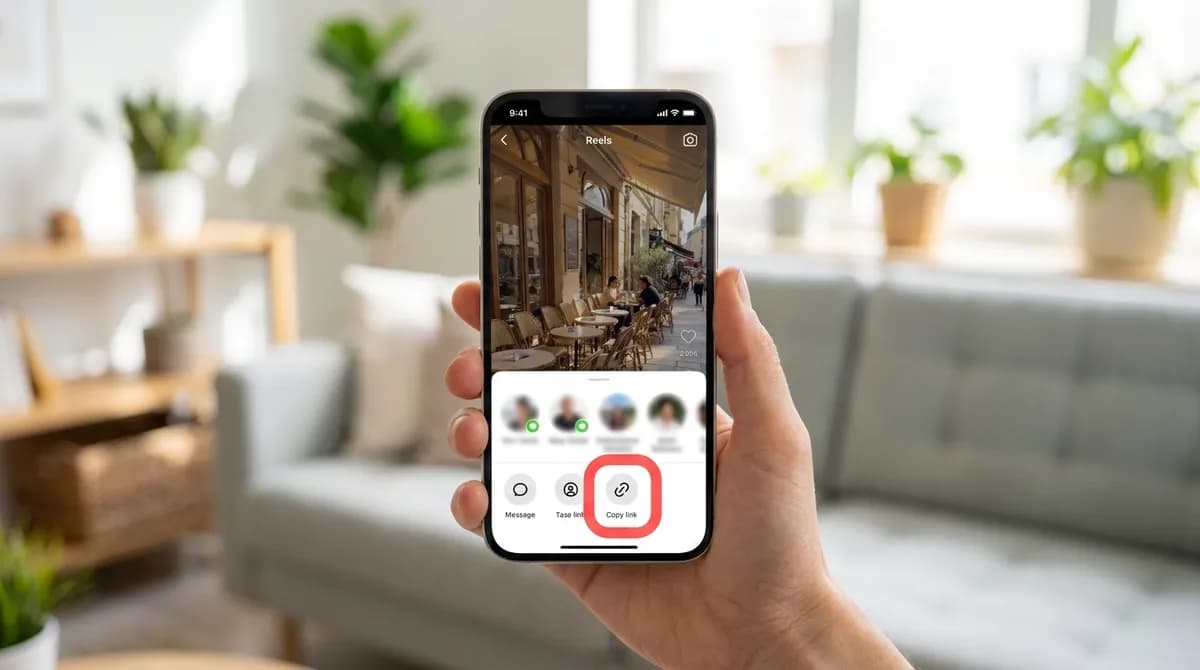
Open the Reel in the Instagram app and tap the paper-plane Share button in the column of icons on the right. On a video post in the feed, the same paper plane sits under the post. A sheet slides up with your contacts and a row of round options; tap Copy link.
Instagram confirms with a short message and the link is on the clipboard, in the form instagram.com/reel/… or instagram.com/p/…. Both work, and so does a link copied from Safari's address bar on instagram.com while the Reel is open on its own.
Step 2: Paste it into SnapVidBox in Safari
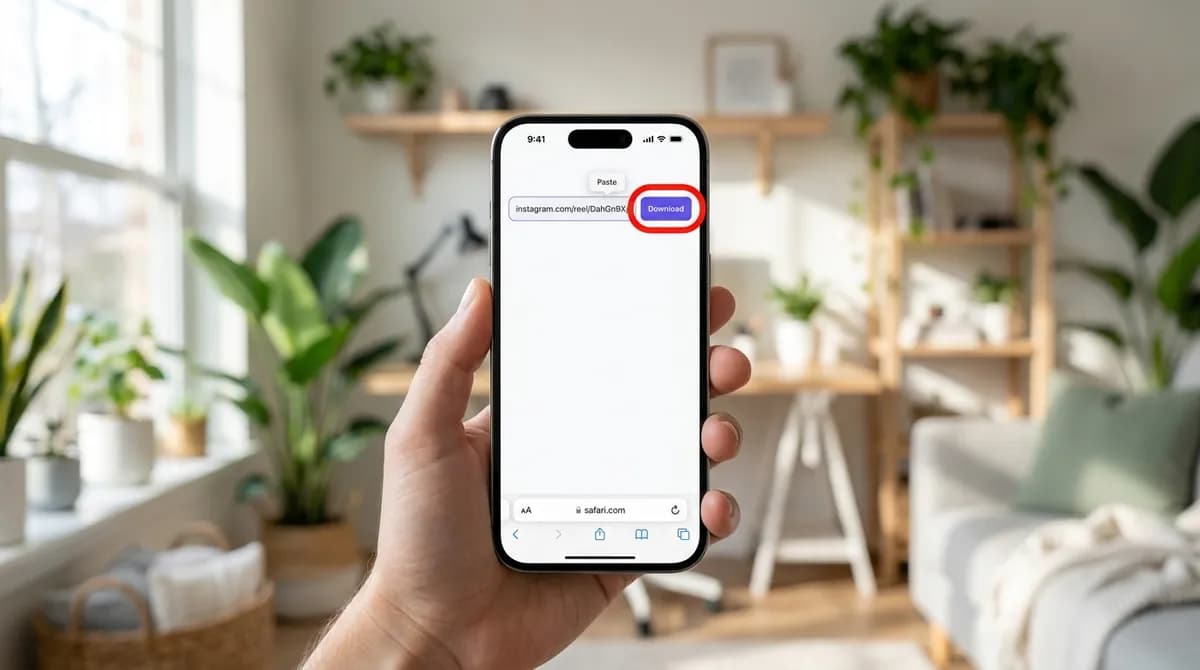
Open Safari and go to the Instagram video downloader. Tap Paste next to the input box, or touch and hold inside the box and choose Paste. The first time a site reads the clipboard, Safari shows a small Paste bubble you need to tap.
Tap the violet Download button. There is no account to create and no platform to choose: the site recognises the Instagram link and reads the files Instagram keeps for that Reel, which takes a few seconds.
Step 3: Download the MP4
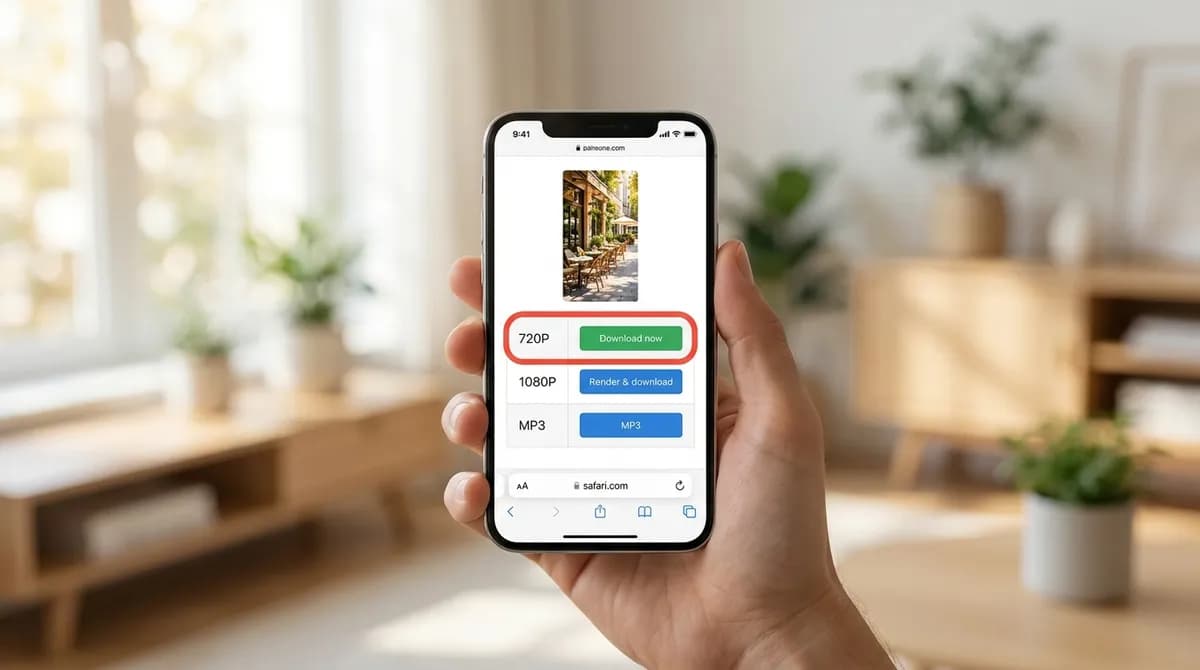
A table of files appears below the box, with the Reel's cover and its caption as the title. For your camera roll, tap the green Download now button on the first video row, usually 720P. It is the complete file Instagram serves, picture and sound together, in the H.264 format that every iPhone plays and Photos imports.
Safari asks whether to download the file and shows its name, taken from the caption. Tap Download, and wait for the small arrow in the address bar to fill before you switch apps.
When Instagram keeps a sharper copy, a 1080P row appears with a blue Render & download button; our server joins its picture and sound in a few seconds. That file uses the VP9 format. Recent iPhones play it in Files, but Photos on older models may refuse to import it, so for the camera roll the 720P row is the safe choice.
Step 4: Find the Reel in Files, under Downloads
Open the Files app, tap Browse, then iCloud Drive, then Downloads. That is where Safari saves files unless you have changed it, and the Reel is named after its caption, so it is near the top when the folder is sorted by date.
If it is not there, look in On My iPhone, Downloads; Safari uses that folder when the download location has been changed in Settings, Safari, Downloads (Settings, Apps on iOS 18 and later). The quickest route either way is the download arrow in Safari's address bar, then the magnifying glass next to the file.
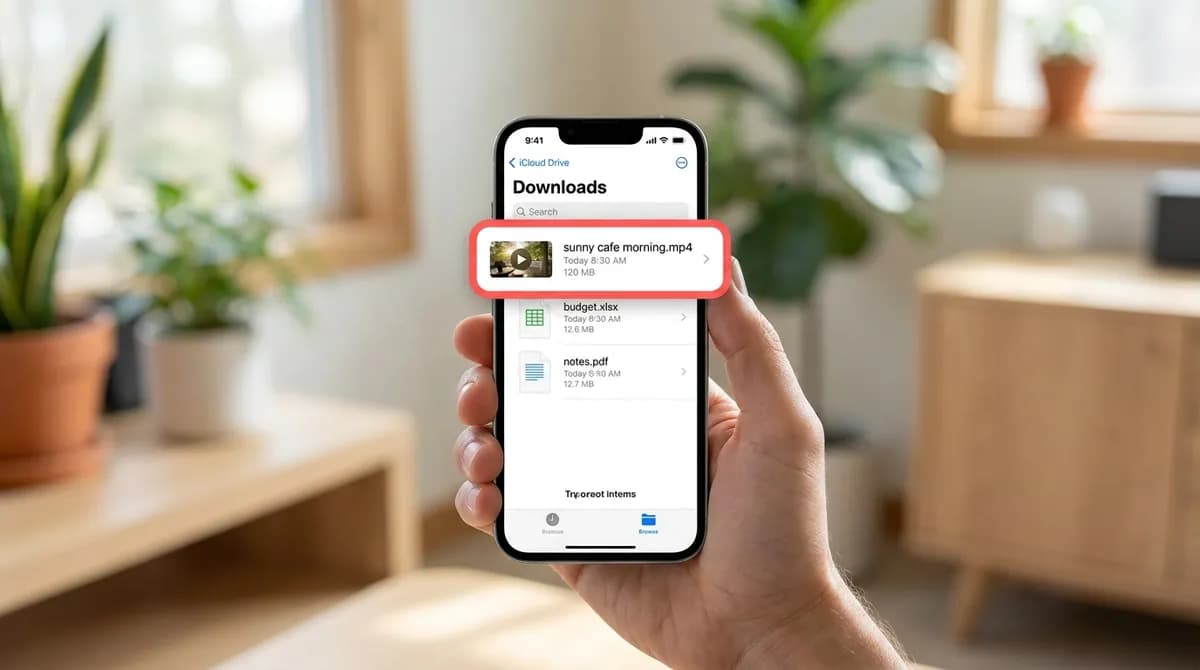
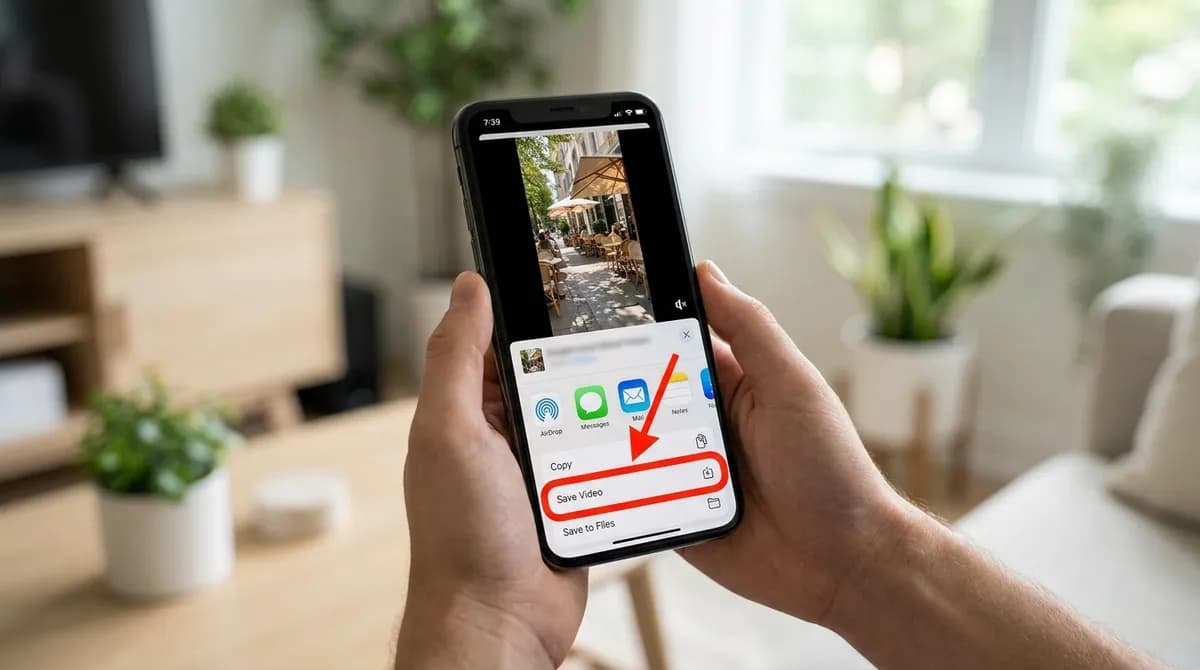
Step 5: Tap Share, then Save Video
Tap the Reel in Files to open it, then tap the Share button in the bottom-left corner and choose Save Video. The Reel is copied into Photos, where you can trim it, add it to an album or send it on like any clip you recorded.
If the share sheet offers Save Image, you downloaded the cover JPG; if it offers no Save option at all, see the list further down.
Which file should you pick?
The list shows what Instagram keeps for that Reel, so it changes from one to the next:
- MP4, 720P (Download now): the complete file, saves at once, plays everywhere. The right choice for Photos.
- MP4, 1080P (Render & download): the sharpest copy, made on our server. Best watched in Files or a video app on a recent iPhone.
- M4A and MP3: the sound alone, also listed first on the Instagram to MP3 page. Photos does not hold audio, so these stay in Files.
- JPG, Cover image: the Reel's thumbnail, saved with Share, Save Image.
Carousels with several videos
A post with several videos in a carousel comes back with each one labelled Video 1, Video 2 and so on, each with its own download buttons. Save the ones you want, then move them to Photos one by one, or select several in Files and share them together.
Photos inside a carousel, and photo-only posts, cannot be saved yet: only the videos come back.
If Save Video does not appear
The share sheet offers Save Video only for a video file Photos can import. If it is missing:
- The download is still running. Wait for the arrow in Safari's address bar to finish, then open the file again.
- You saved the 1080P file on an older iPhone. Go back and download the 720P row, which is H.264.
- You saved the sound or the cover. Pick one of the MP4 rows.
- The iPhone is short of space. Photos needs room for its own copy.
- The file is still in iCloud. A cloud icon next to it in Files means it has not come down yet; tap it and wait.
If the link does not work
A message instead of a list of files usually means Instagram does not show that post to someone who is not logged in as you: the account is private, the post is for Close Friends, or it has been deleted. Stories cannot be saved from a link either.
If the Reel is public and it still fails, wait a few seconds and try again. Instagram limits how quickly anyone can ask for its files, and a second try usually goes through.
Tidying up and fair use
Once the Reel is in Photos, the copy in Files is a duplicate; delete it from Downloads to get the space back. A saved Reel is for you to watch. Reposting someone else's video needs their permission, and the music in many Reels is licensed separately. The copyright guide explains where personal use ends.
Which file goes into Photos
What each row of the result list is, and what Photos does with it:
| File | Format | Photos on iPhone |
|---|---|---|
| 720P MP4 (Download now) | H.264 | Imports on every iPhone. The right choice for Photos |
| 1080P MP4 (Render & download) | VP9 | Recent iPhones; older models may not offer Save Video |
| M4A and MP3 · Audio only | Audio | Stays in Files; Photos holds pictures and video only |
| JPG, Cover image | JPG | Share, Save Image |
In short
Copy the Reel's link in Instagram, paste it into SnapVidBox in Safari, download the 720P MP4, then open it in Files, Downloads and tap Share, Save Video. After the first time it is a routine of a few taps, and the Reel stays on your iPhone whatever happens to the post.
Frequently asked questions
Can I save an Instagram Reel straight into Photos?
Not from Safari. Every download goes to the Files app first, and Share, Save Video moves it into Photos. It takes a few seconds once you know where to look.
Does the saved Reel have an Instagram watermark?
No. SnapVidBox fetches the video file Instagram serves to its own player, without the logo and username that Instagram's in-app download adds.
Which quality should I choose for my camera roll?
The 720P MP4. It is H.264, which Photos imports on every iPhone. The 1080P copy is sharper but uses VP9, which older iPhones may not import into Photos.
Can I save a Reel from a private account?
No. Private accounts and Close Friends posts are shown only to the people the owner chose, so a link-based tool cannot open them. Ask the creator to send you the video.
Can I save Instagram Stories or photos this way?
Not yet. Reels, video posts and the videos in a carousel work; photos and Stories do not come back from a link.
Do I need to log in to Instagram or install an app?
No. You only paste the link. There is nothing to sign in to on SnapVidBox, and Safari and Files are all the iPhone needs.
Related guides
How to download Instagram Reels without a watermark, free and in HD
Save a public Instagram Reel as a clean MP4 with no logo or username overlay, on iPhone, Android or PC: paste the link, take the 720p file at once or a 1080p one.
8 min read
How to convert an Instagram Reel to MP3 and keep just the audio
Save the sound of an Instagram Reel as an MP3 or the original M4A, on a phone or a computer, with no app. Which bitrate to choose, and what you can do with it.
8 min read
How to download Instagram videos and Reels on PC or Mac in HD
Save an Instagram Reel or video post on Windows or macOS from your browser, no software: the HD MP4 at once, 1080p made on our server, or just the sound.
8 min read
How to save a Douyin video to your iPhone camera roll without the watermark
Safari saves downloads to Files, not Photos. The five steps from a v.douyin.com link to your iPhone camera roll, without the watermark, with no app to install and no Chinese account.
8 min read
Sources
- Who can see and share your reels on Instagram — Instagram
- Manage reels on Instagram — Instagram
- Where to find downloads on your iPhone or iPad — Apple
Ready to try it?
Paste any supported link and the platform is detected automatically.
Open the downloader