How to download Instagram Reels without a watermark, free and in HD
Short answer
To download an Instagram Reel without a watermark, copy its link (Share, then Copy link), paste it into SnapVidBox and tap Download. The 720P row is the MP4 Instagram serves to its own player, with no logo or username added, and it downloads at once; 1080P is joined on our server with Render & download. It is free, needs no app or login, and works for public Reels only.
To download an Instagram Reel without a watermark, copy the Reel's link, paste it into SnapVidBox, tap Download and take the MP4 row. The file is the one Instagram serves to its own player: the picture and the sound, with nothing laid over them by us, so there is no logo in a corner and no username across the frame. It is free, needs no app and no login, and works on an iPhone, an Android phone and a computer.
The reason this needs a guide at all is that a saved Reel does not always look like the Reel you watched. Some apps and websites stamp their own name on the video, and a Reel that was posted with an overlay already burned in will keep it. This guide explains what a watermark is and is not, shows the five steps, says which file to pick, and lists the Reels that cannot be saved at all, so you do not waste time on a link that will never work.
Everything below is about public Reels. A Reel from a private account, a Close Friends post or a Story is shown only to the people chosen, and no tool that works from a link can open it.
What counts as a watermark on a Reel
There are three different things people mean, and only one of them can be removed by the way you download.
- A logo or username added by the tool that saved the file. This is the one a clean download avoids: SnapVidBox hands you the file as Instagram serves it and adds nothing.
- A handle or logo the creator put on the video before posting, for example from the editing app they used. It is part of the picture, so every copy has it, however it is saved. It cannot be taken out and it is the creator's choice to show it.
- The caption, stickers and text the creator placed in the Reel. These are also part of the picture and are not a watermark in any sense: they are the content.
What you need
- A public Instagram Reel or video post, and its link.
- A phone or a computer with a current browser: Safari or Chrome on a phone, Chrome, Edge, Firefox or Safari on a computer.
- No Instagram login is needed on SnapVidBox, and no app or extension to install.
Step 1: Copy the Reel's link
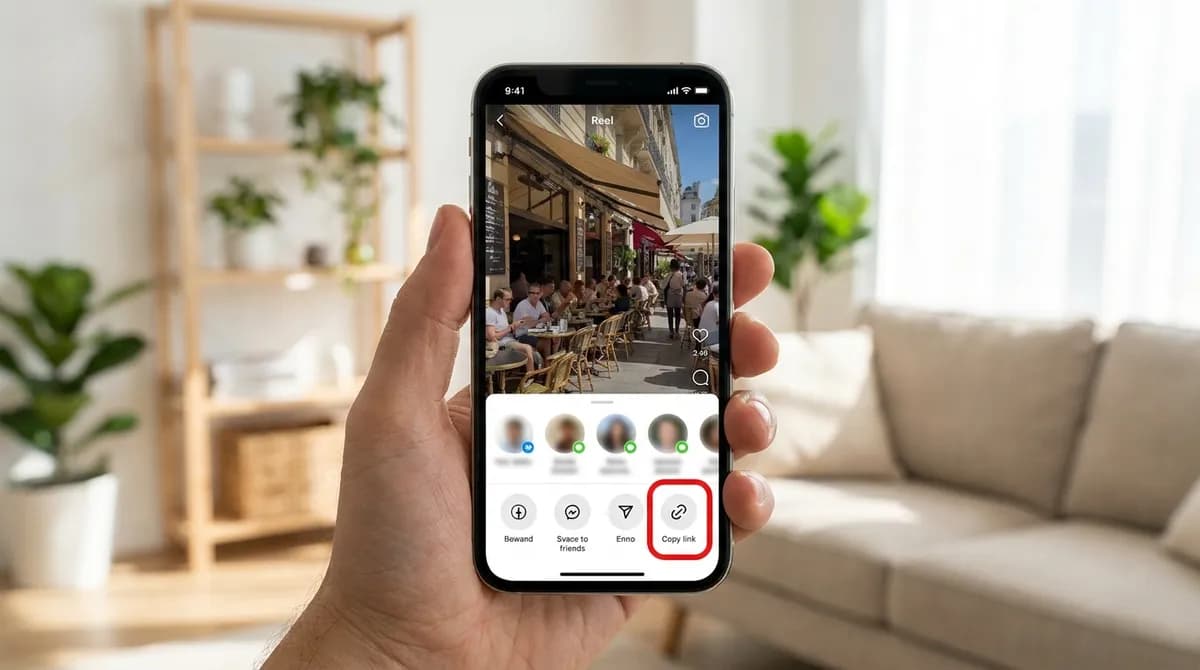
In the Instagram app, open the Reel, tap the paper-plane Share icon and choose Copy link. On a computer, open the Reel on instagram.com so it has a page of its own and copy the address from the address bar (Ctrl+C, or Cmd+C on a Mac).
The link must point at the video itself, instagram.com/reel/… or instagram.com/p/…. The address of the home feed or of someone's profile does not work: open the video first, then copy.
Step 2: Paste it into SnapVidBox
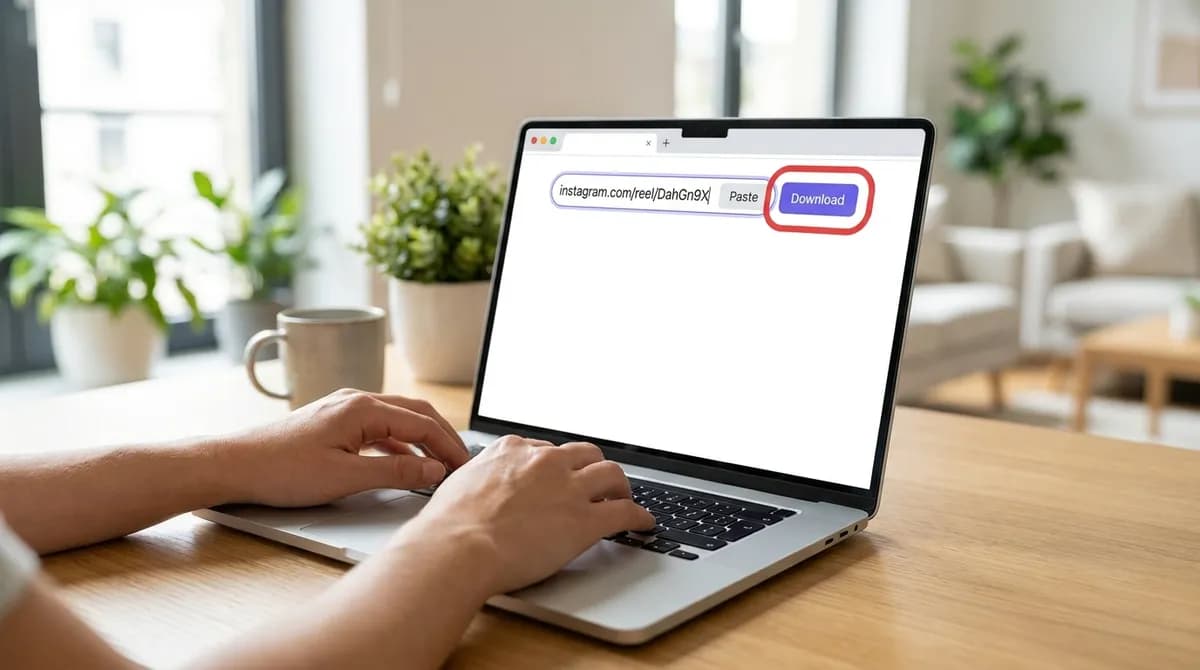
Open the Instagram video downloader in your browser, tap the box and paste the link, or tap Paste. Then tap the violet Download button.
A few seconds later a table appears with the cover, the caption as the title, the account name and one row per file. If a message appears instead, see the last section.
Step 3: Pick the clean MP4
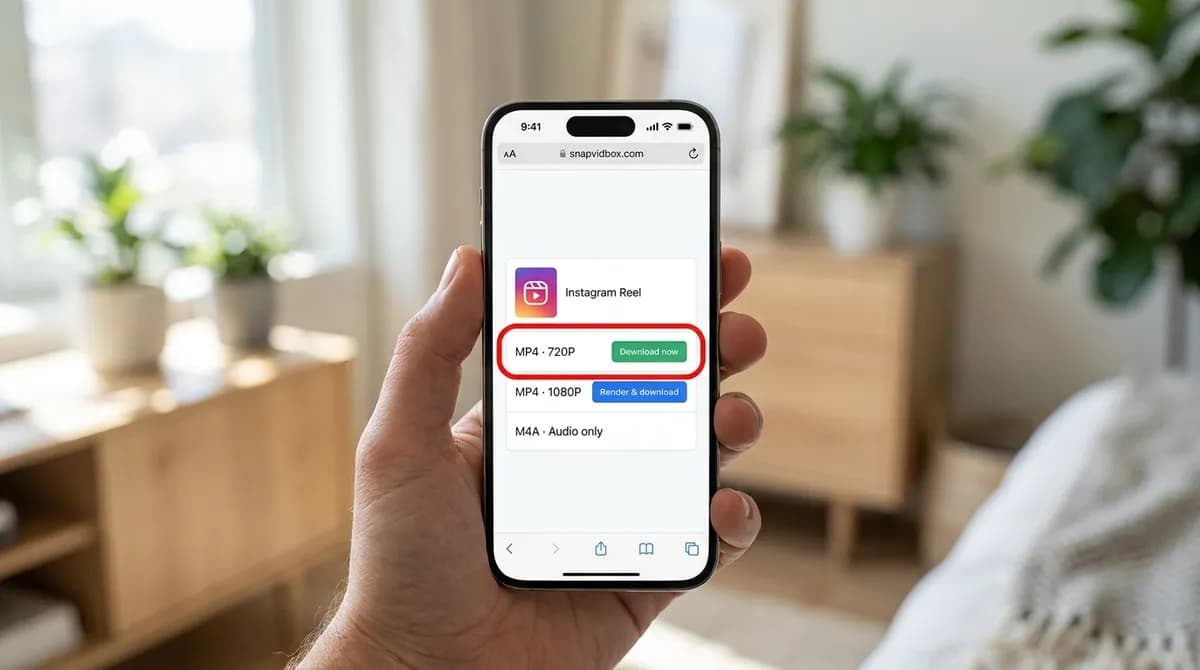
The first video row, usually 720P, has a green Download now button. It is the complete MP4 Instagram serves, H.264 with the sound, and it starts downloading straight away. This is the file to take if you want something that opens everywhere.
When Instagram also keeps a sharper copy, a 1080P row appears with a blue Render & download button. Our server joins the picture and the sound into one MP4, and the download starts within a few seconds. Neither row has anything added to it by us.
Step 4: Find the file
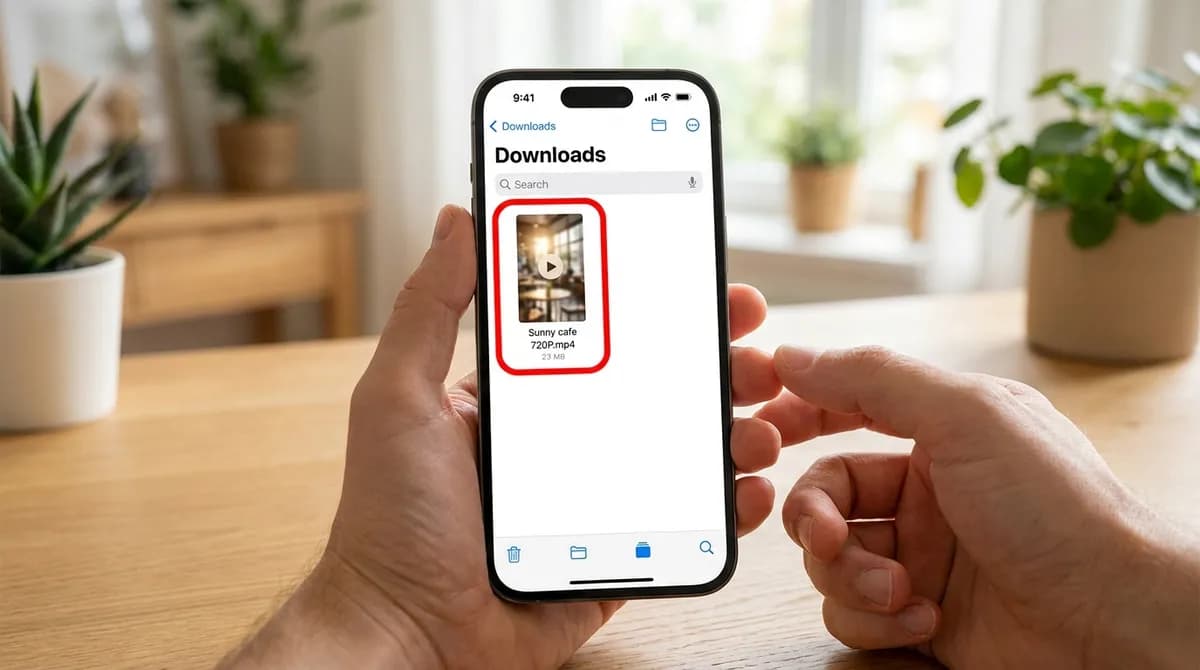
On an iPhone, Safari saves it into the Files app under Downloads. On an Android phone it goes to the Downloads folder. On a computer it lands in the browser's downloads folder, named after the caption with a short tag for the row, so two qualities of the same Reel never overwrite each other.
To move a Reel from Files into the Photos app on an iPhone, open it, tap Share and choose Save Video. The iPhone guide walks through it.
Step 5: Check that it is clean
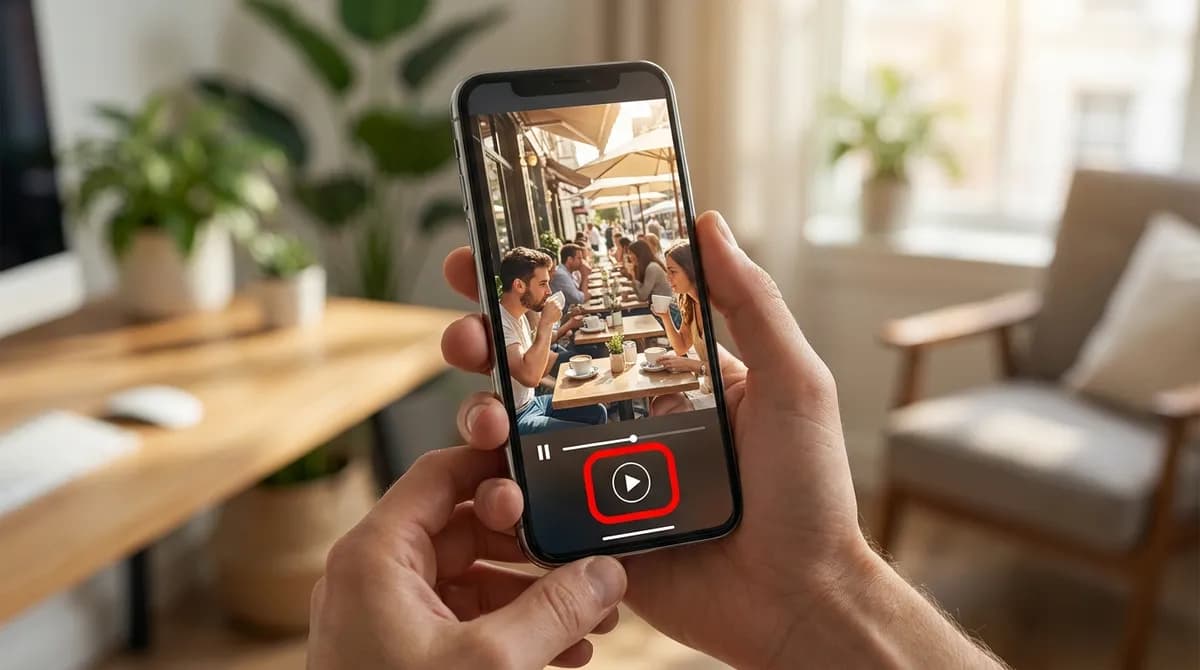
Play the file and look at the corners and the middle of the frame. A Reel saved this way shows the picture and nothing else: no Instagram logo, no username, no extra name from us. If you still see a name or a handle, it was in the video when the creator posted it, which is the second kind of watermark above.
720p or 1080p: which to choose
The 720P file is H.264, the format every player, phone and editor understands. Take it when the Reel is going to a friend, into a chat or onto a phone.
The 1080P file is sharper and is VP9, because that is how Instagram stores its larger copy; joining the picture to the sound does not re-encode it, so nothing is lost. VP9 plays in every browser, in VLC and in Media Player on Windows. QuickTime on a Mac does not play it, and some older editors refuse it. If that happens, open it in VLC or IINA or use the 720P file. The PC and Mac guide goes through the players in detail.
Saving only the sound
The same table lists the sound on its own. The M4A is the audio exactly as Instagram stores it and downloads at once; the MP3 rows at 320, 256 and 128 kbps are converted on our server. Instagram rarely stores sound above 128 kbps, so 128 is enough for most uses. The Instagram to MP3 page lists the sound first.
Carousels, photos and Stories
A carousel with several videos lists each one as Video 1, Video 2 and so on, each with its own buttons. Photos, in a carousel or on their own, are not returned yet, and Stories cannot be saved from a link. Reels from private accounts and Close Friends posts are not shown to the public, so they cannot be opened either.
If it does not work
- A message instead of a table: the post is private, deleted, a photo or a Story, or the link points at a profile or the feed. Open the video on its own and copy the link again.
- A message that the link could not be resolved: Instagram limits how fast its files can be requested. Wait a few seconds and try again.
- "The server is busy preparing other files": a 1080p render is already running. Wait a minute, or take the 720P row, which never waits.
- The download stops part-way: the links to Instagram's files expire after a while. Paste the link again and download straight away.
- The creator has switched off downloads for their Reels. Instagram lets account owners control this, so a Reel may not be available to save.
Keep it personal
A saved Reel is a copy for you. Reposting someone else's video, with or without a watermark, or using it commercially needs the creator's permission, and the music is usually licensed for use on Instagram only. Removing a mark so that a video looks like your own is not what this guide is for. The copyright guide explains what personal use covers.
What each kind of mark means for a saved Reel
The three kinds of mark from the top of this guide, and what happens to each when you save a Reel here:
| Kind of mark | In the saved file? | Why |
|---|---|---|
| A logo or username added by the saving tool | No | The file is the one Instagram serves to its player; nothing is added |
| A handle the creator put on the video | Yes | It is part of the picture in every copy |
| Captions, stickers and text in the Reel | Yes | They are the content, not a watermark |
In short
Copy the Reel's link, paste it into SnapVidBox and tap Download. Take the 720P row for a file that opens everywhere, or Render & download for 1080p. The file is the one Instagram serves, with no logo or username added.
Frequently asked questions
How do I download an Instagram Reel without a watermark?
Copy the Reel's link, paste it into SnapVidBox and tap Download, then take the 720P row. The file is the one Instagram serves to its own player, with no logo or username added by us.
Is it free, and do I need to log in?
It is free, with no daily limit, no app and no account. You never sign in to Instagram or to SnapVidBox; you only paste a link to a public Reel.
Why does my downloaded Reel still show a name or logo?
Then it was in the video when the creator posted it, for example a handle from an editing app. It is part of the picture, so every copy has it and it cannot be removed by the way you save.
Can I download Reels in 1080p?
Yes, when Instagram keeps a 1080p copy. It is listed with a Render & download button; our server joins the picture and the sound into one MP4 in a few seconds.
Can I save a Reel from a private account or a Story?
No. Private accounts, Close Friends posts and Stories are shown only to the people chosen, so a link cannot open them. Only public Reels and video posts work.
Is it legal to download Instagram Reels?
Keeping a copy of a public Reel to watch yourself is generally personal use. Reposting it or using it commercially needs the creator's permission, and the music is usually licensed separately.
Related guides
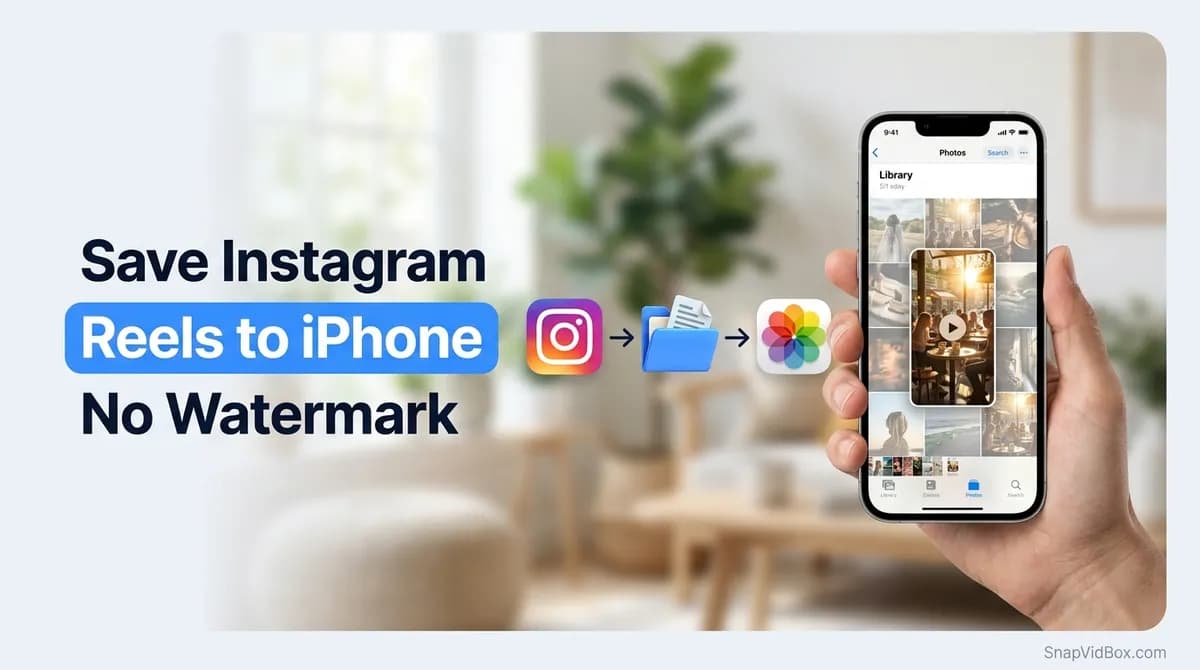
How to save Instagram Reels to your iPhone camera roll
Instagram's own save keeps a Reel inside the app. Five steps to save an Instagram Reel or video to your iPhone camera roll, with Safari and no app to install.
8 min read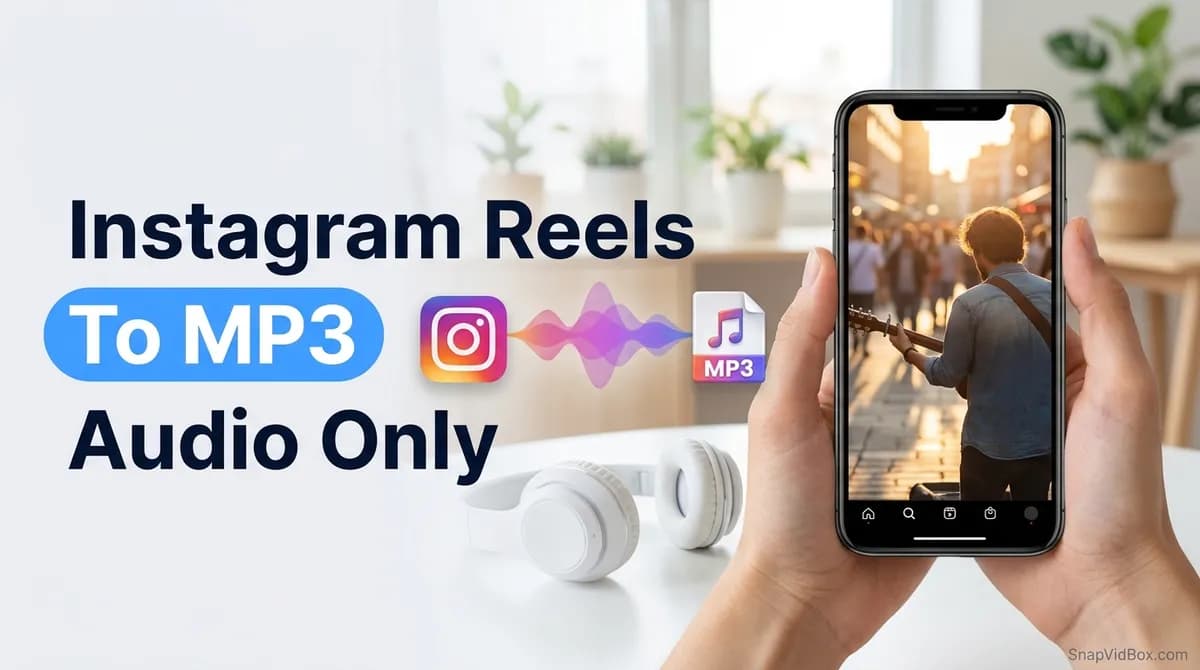
How to convert an Instagram Reel to MP3 and keep just the audio
Save the sound of an Instagram Reel as an MP3 or the original M4A, on a phone or a computer, with no app. Which bitrate to choose, and what you can do with it.
8 min read
How to download Instagram videos and Reels on PC or Mac in HD
Save an Instagram Reel or video post on Windows or macOS from your browser, no software: the HD MP4 at once, 1080p made on our server, or just the sound.
8 min read
How to download a TikTok video without the watermark
Save TikTok videos without the logo on iPhone, Android or PC: copy the link, paste it into SnapVidBox and pick the HD MP4. No app or account needed.
9 min read
Sources
- Who can download your Instagram reels — Instagram
- Who can see and share your reels on Instagram — Instagram
- Terms of Use — Instagram
Ready to try it?
Paste any supported link and the platform is detected automatically.
Open the downloader