How to download a TikTok video without the watermark
To download a TikTok video without the watermark, copy the video's share link in TikTok, paste it into the TikTok video downloader on SnapVidBox, tap Download and choose the file marked "MP4 · HD" with the "No watermark" badge. It works the same way on an iPhone, an Android phone and a computer, in the browser you already use.
This works because TikTok keeps more than one version of most videos. The copy that plays in the app, and the one TikTok's own Save video button gives you, has the TikTok logo and the creator's username drawn over the picture, plus a short end card. Alongside it TikTok stores an unbranded master. SnapVidBox fetches that clean file directly; it does not blur, crop or paint over anything.
The rest of this guide walks through each step with what you will see on screen, explains which of the files in the list to pick, and covers what to do when a link refuses to download.
What you need
Nothing has to be installed, and you do not need a TikTok account to save a public video.
- A public TikTok video. Private, friends-only, deleted, age-restricted and region-blocked posts cannot be fetched by any outside tool.
- Its share link, copied from the TikTok app or from the address bar on tiktok.com.
- A browser: Safari or Chrome on an iPhone, Chrome or another browser on Android, and any desktop browser on Windows or macOS.
- Enough free storage for the file. HD clips are noticeably larger than the standard version, especially for longer videos.
Step 1: Copy the TikTok video's link
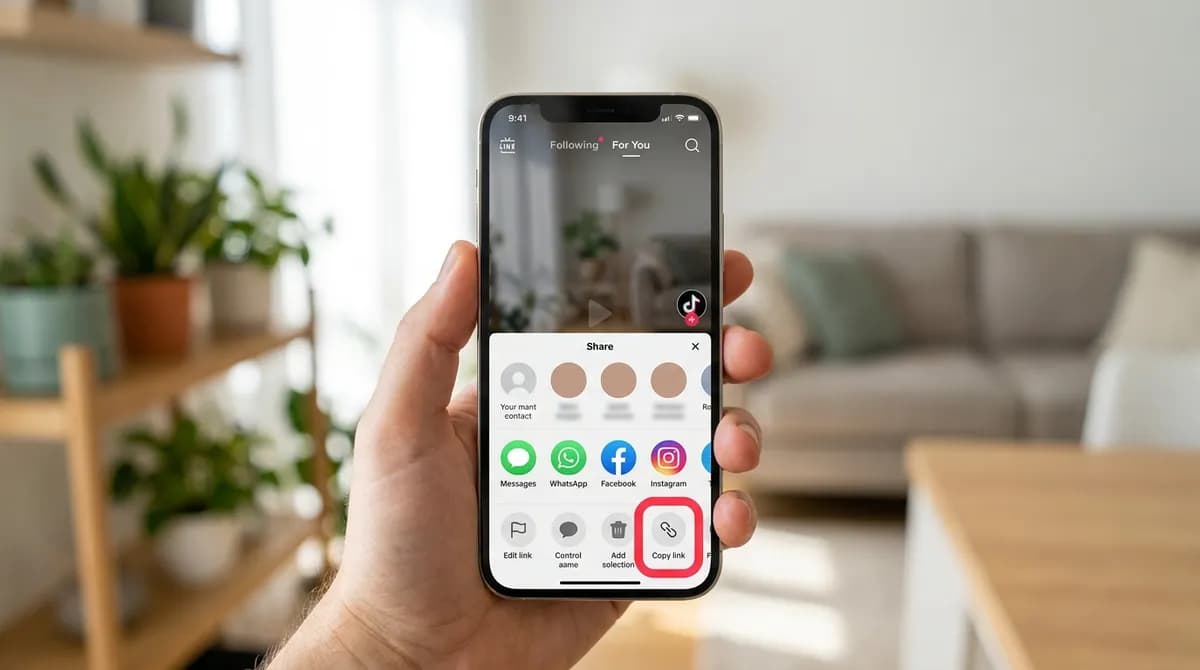
Open the video in the TikTok app. On the right-hand side of the screen, below the like and comment buttons, there is an arrow-shaped Share button. Tap it and a panel slides up from the bottom with a row of contacts, a row of apps and a row of actions. Tap Copy link. TikTok shows a brief confirmation and the link is now on your clipboard.
The link looks something like vt.tiktok.com/ZS… or vm.tiktok.com/…. These short links are fine; you do not need to open or expand them. On a computer, open the video on tiktok.com and copy the address from the address bar instead. It takes the form tiktok.com/@name/video/ followed by a long number, and it works just as well.
If you do not see Copy link, swipe the bottom row of the share panel sideways; on some phones it sits further along. If you shared the video to a messaging app and copied it from there, TikTok may have added a sentence of text around the link. That is not a problem, because the downloader picks the link out of whatever you paste.
Step 2: Paste the link into SnapVidBox
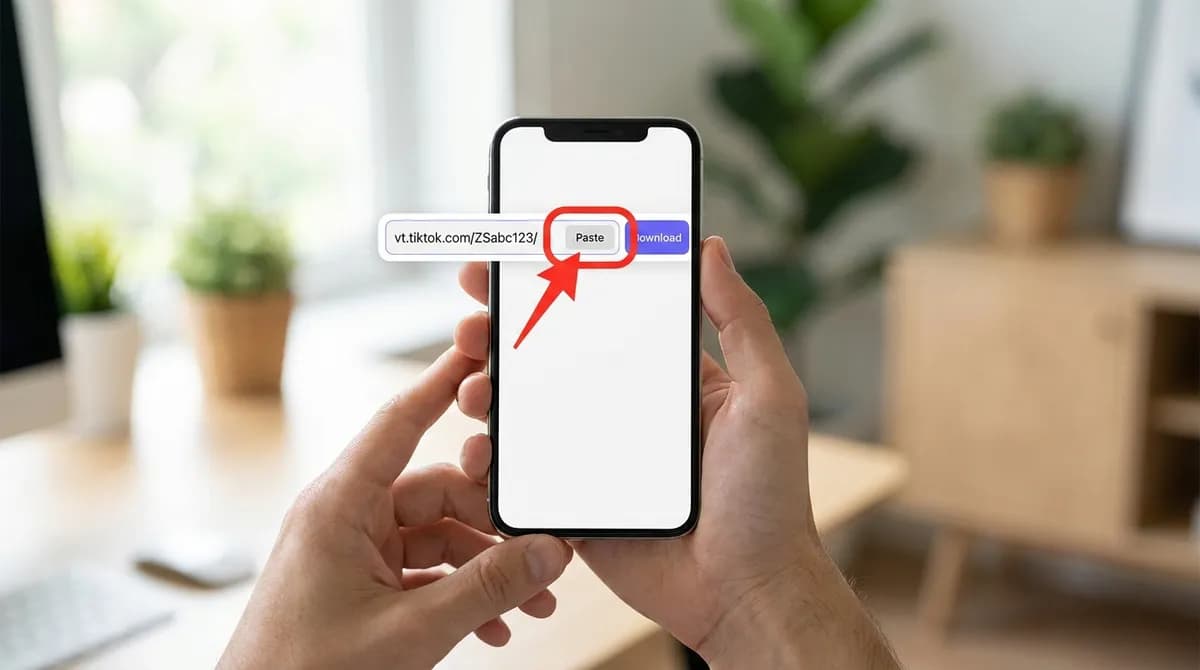
Open the TikTok video downloader in your phone's browser. At the top of the page is a single input box, with a Paste button inside it and a violet Download button next to it. Tap Paste and the link drops into the box. The first time, the browser may ask for permission to read the clipboard; allow it, or touch and hold inside the box and choose Paste from the menu.
There is nothing to set up. The site recognises a TikTok link on its own, and tracking parameters on the end of the link are ignored. You will not be asked to sign in, install an app or an extension, or sit through a countdown, and there are no ads or pop-ups to close.
Step 3: Tap Download and choose MP4 · HD
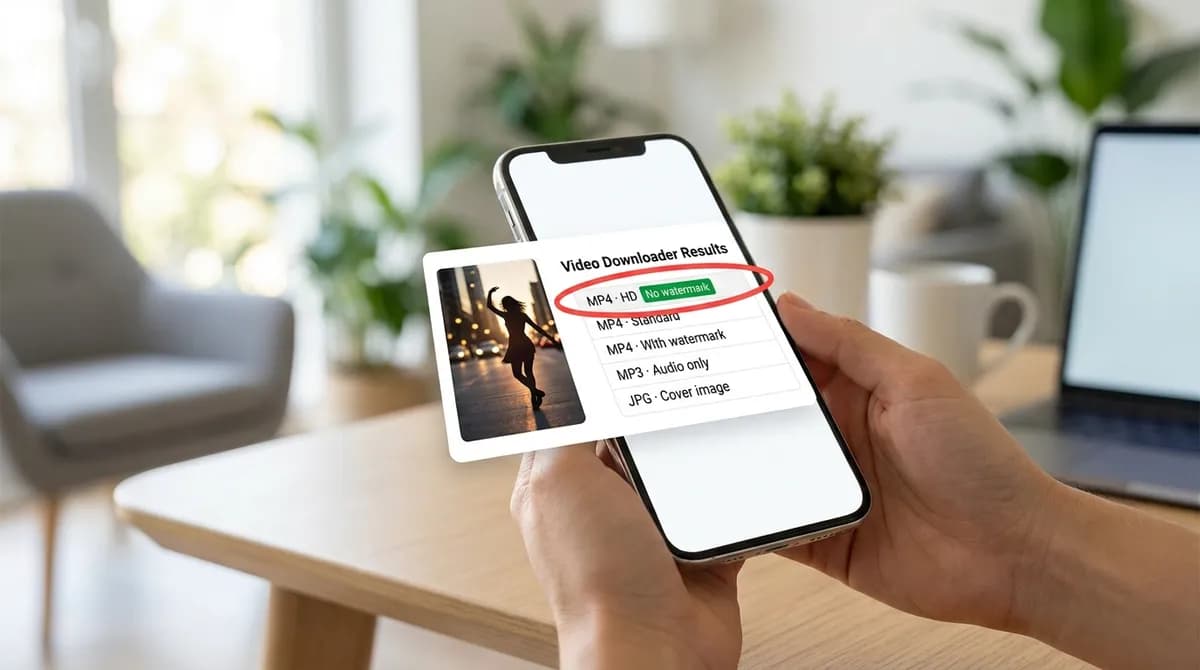
Tap Download. After a moment a result card appears with the video's cover image, its title and a list of files. For an ordinary TikTok video the list reads "MP4 · HD" with a "No watermark" badge, then "MP4 · Standard", "MP4 · With watermark", "MP3 · Audio only" and "JPG · Cover image".
Tap "MP4 · HD". That is the highest rendition TikTok stores for the video, commonly 1080p. It is the original file rather than an upscale, so a clip that was uploaded at a lower resolution stays at that resolution. The file is named after the video's title, which makes it easier to find later.
If a message appears instead of the list, wait a few seconds and tap Download again. The service that reads TikTok sometimes limits how quickly requests can be made, and a second try usually goes through.
Step 4: Save the file on your phone or computer
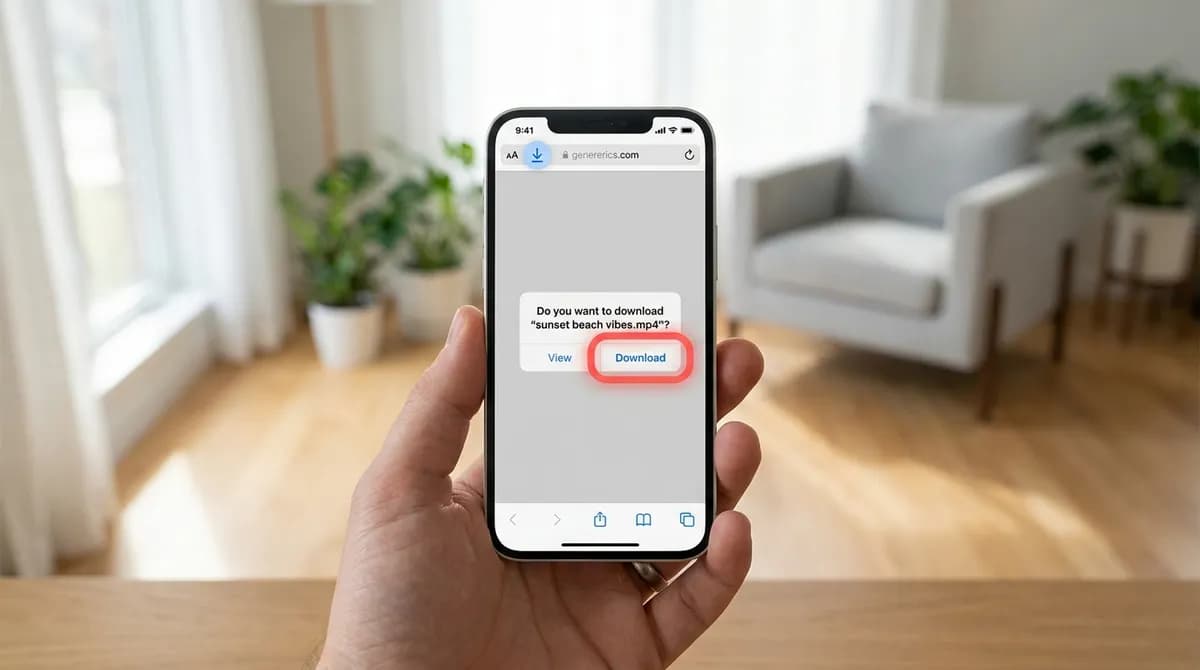
What happens next depends on the device. On an iPhone, Safari asks whether you want to download the file; tap Download. A download arrow appears in the address bar, and the video goes into the Files app, in the Downloads folder. To move it into the Photos app, open it in Files, tap Share and choose Save Video. The iPhone guide covers that part screen by screen.
On Android, Chrome saves the video into the Downloads folder and shows a notification when it finishes. Gallery apps generally pick up new videos from Downloads on their own, so you will usually find the clip in your gallery or Google Photos without moving it.
On a Windows PC or a Mac, the file goes to the browser's usual downloads folder. In Chrome or Edge on Windows, Ctrl+J opens the list of recent downloads; on a Mac, look in Finder under Downloads.
Why the file has no watermark
It helps to know what is going on, because it explains both what you get and what you do not. When a creator uploads a video, TikTok produces several copies of it. The copy built for sharing has the logo and the username drawn into the frames, which is why the watermark moves around the picture and cannot be switched off in the player. The master copy is stored without that layer.
SnapVidBox asks TikTok for the files TikTok already serves and lists them. It does not edit the video, so there is no blurring, cropping or patching involved, and the picture you save is the picture the creator uploaded. That is also why the branded copy appears in the list as its own "MP4 · With watermark" entry: it is a different file, not the same file with a filter applied. Tools that claim to erase a logo from a finished video are working on the pixels, and it shows.
Which file to pick
Each entry in the result list is a separate file. In short:
- MP4 · HD (No watermark): the default choice. Use it for editing, for watching on a larger screen, or to keep a copy at the highest quality TikTok has.
- MP4 · Standard: also without the watermark, in H.264, which plays on every phone, computer and chat app. It is not always smaller than the HD file, which often uses the more efficient HEVC, but it is the safe pick when the HD file will not play on an older computer or upload somewhere.
- MP4 · With watermark: the branded copy, the same as TikTok's own Save video. Pick it if you want the credit to stay on the picture.
- MP3 · Audio only: just the sound. The TikTok to MP3 page lists it first, and the ringtone guide shows one thing to do with it.
- JPG · Cover image: the thumbnail TikTok shows in the feed, useful as a poster frame.
Downloading on a PC or Mac
On a computer there is no app to copy from, but the browser hands you the link directly. Open the video on tiktok.com, click the address bar and copy the address with Ctrl+C, or Cmd+C on a Mac. Open SnapVidBox in a new tab, click in the box, paste with Ctrl+V or Cmd+V and click Download. Click "MP4 · HD" and the browser saves the file to Downloads.
Some HD files use the HEVC (H.265) video format. Macs play these in QuickTime without any setup, but older Windows installations may refuse to open them in the built-in player. If that happens, add the HEVC codec, open the file in VLC, or download "MP4 · Standard" instead. The PC and Mac guide goes through the desktop route in more detail.
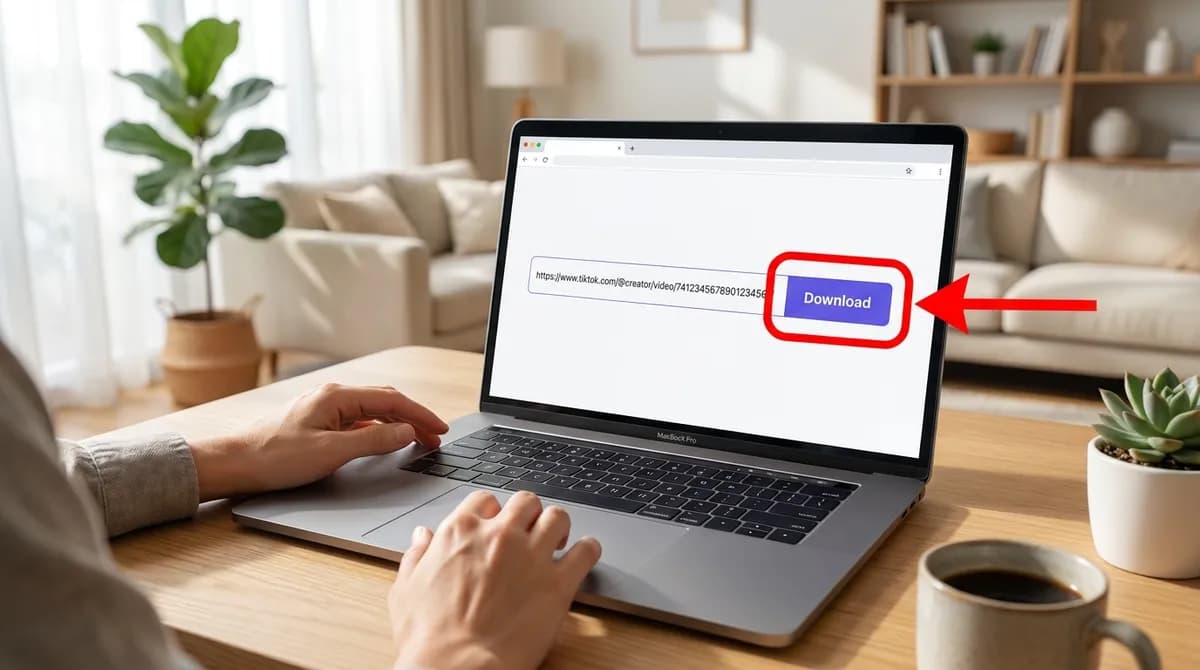
Photo posts and slideshows
Not every TikTok is a video. Photo posts, where the creator swipes through a set of pictures over a sound, come back as one JPG per slide, labelled "JPG · Photo 1 of N", "JPG · Photo 2 of N" and so on, together with the MP3 of the sound. Save each picture you want; on an iPhone, the share sheet in Files offers Save Image instead of Save Video. The TikTok photo downloader explains these posts in more detail.
When a link will not download
Most failures come down to the post itself rather than the link. Work through these:
- The post is private, friends-only, deleted, age-restricted or blocked in some regions. Only public posts can be fetched, and there is no way round that.
- A busy or rate-limit message appears. Wait a few seconds and tap Download again.
- The download stopped partway. One of TikTok's regional servers occasionally drops a connection; paste the link and resolve it again, or pick "MP4 · Standard" instead of HD.
- The link points to a profile, a sound page or a search result rather than one video. Open the video itself and copy its link.
- The video saved but will not play on Windows. That is the HEVC format; see the PC section above.
Using a downloaded TikTok responsibly
Saving a video to watch later offline is ordinary personal use. Reposting it to your own account, putting it in an advert or using it commercially is a different matter and needs the creator's permission, and the music in a clip is usually licensed separately from the video. A clean file makes it easy to forget whose work it is, so if you do share it, ask first and credit the creator. The copyright guide has the longer version.
Summing up
Copy the link, paste it into SnapVidBox, tap Download and choose "MP4 · HD". On an iPhone, move the file from Files into Photos with Save Video; on Android and on a computer it is already in Downloads. When something goes wrong, the cause is almost always a private or restricted post, or a moment of rate limiting that clears on a second try.
Frequently asked questions
Is it free to download TikTok videos with SnapVidBox?
Yes. There is no account, no subscription and no daily limit, and the site shows no ads, pop-ups or countdowns. You paste a link, tap Download and pick a file.
Do I need a TikTok account to save a video?
No. Any public video can be saved from its share link without signing in to TikTok or to SnapVidBox. You only need the TikTok app or website to copy the link in the first place.
Is the quality lower than the original upload?
No. "MP4 · HD" is the highest rendition TikTok stores for that video, commonly 1080p, and it is handed over as it is. If the creator uploaded at a lower resolution, that is the resolution you get, because nothing is upscaled.
Can I save a video from a private account?
No. Private, friends-only, age-restricted and region-blocked posts are not available to outside tools, and SnapVidBox only works with public posts. If a friend wants you to have a private clip, ask them to send you the file.
Are the links I paste stored anywhere?
No. A link is used to fetch the list of files and is not kept afterwards. There is no account either, so nothing ties a download to you.
Can I rename the downloaded file?
Yes. The file is named after the video's title, which on TikTok is usually the caption, so long captions with hashtags can give an untidy name. Renaming it in Files, in your file manager or on your computer does not affect the video.
Ready to try it?
Paste any supported link and the platform is detected automatically.
Open the downloader