How to save a TikTok video to your iPhone camera roll without the watermark
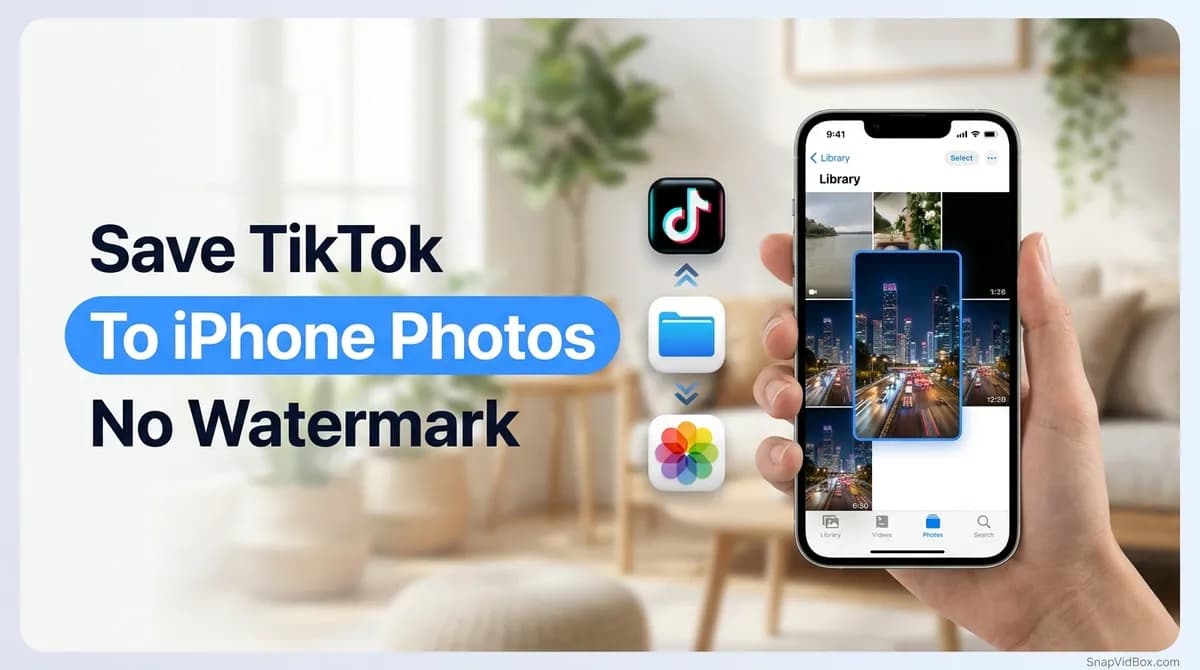
To save a TikTok video to your iPhone's camera roll without the watermark, copy the video's link in TikTok, paste it into SnapVidBox in Safari and download the "MP4 · HD" file. Safari puts it in the Files app, in the Downloads folder. Open it there, tap Share and choose Save Video, and it moves into Photos with the rest of your videos.
The detour through Files is the part that trips people up. TikTok's own Save video button puts a copy straight into Photos, but that copy has the TikTok logo and the creator's username drawn over the picture plus a short end card, and the button only appears when the creator allows downloads. Safari, on the other hand, treats anything you download as a file, and files go to the Files app rather than to Photos.
The first time takes a little while as you find your way around the two apps; after that it becomes a quick routine. Everything happens in apps that come with the iPhone, and there is nothing to install.
What you need
- An iPhone with Safari and the Files app. Both come preinstalled; if you deleted Files at some point, it is free to reinstall from the App Store.
- The TikTok app, or tiktok.com open in Safari, to copy the link.
- A public video. Private, friends-only, deleted, age-restricted and region-blocked posts cannot be saved.
- Room for two copies for a moment, one in Files and one in Photos. You can delete the Files copy once you are done.
Step 1: Copy the link in TikTok
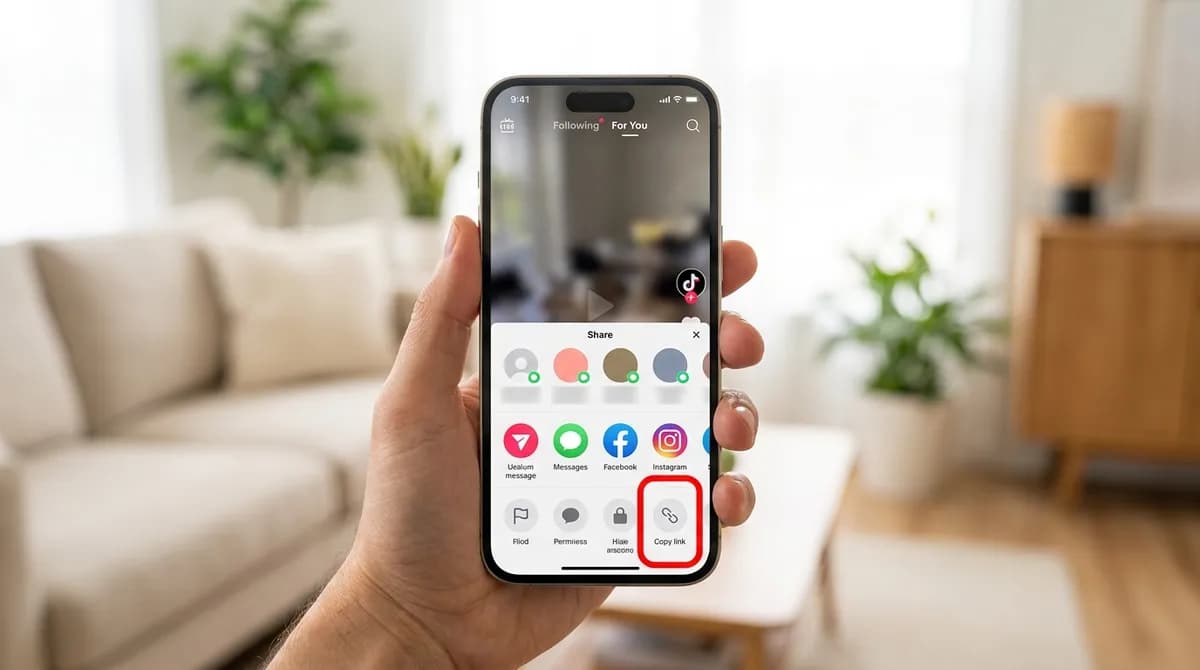
Open the video in the TikTok app and tap the arrow-shaped Share button on the right-hand side, under the comments icon. A panel rises from the bottom of the screen. In its bottom row of actions, tap Copy link. TikTok briefly shows a confirmation, and the link goes to the clipboard.
The link is a short one, such as vt.tiktok.com/ZS…, and you do not need to open it. If the bottom row does not show Copy link, swipe that row to the left. If you are watching on tiktok.com in Safari rather than in the app, the address in the address bar works too.
One thing to avoid: the Save video option sits right next to Copy link in the same panel. It saves the branded copy straight to Photos, which is exactly what this guide is working around, so leave it alone.
Step 2: Paste the link into SnapVidBox in Safari
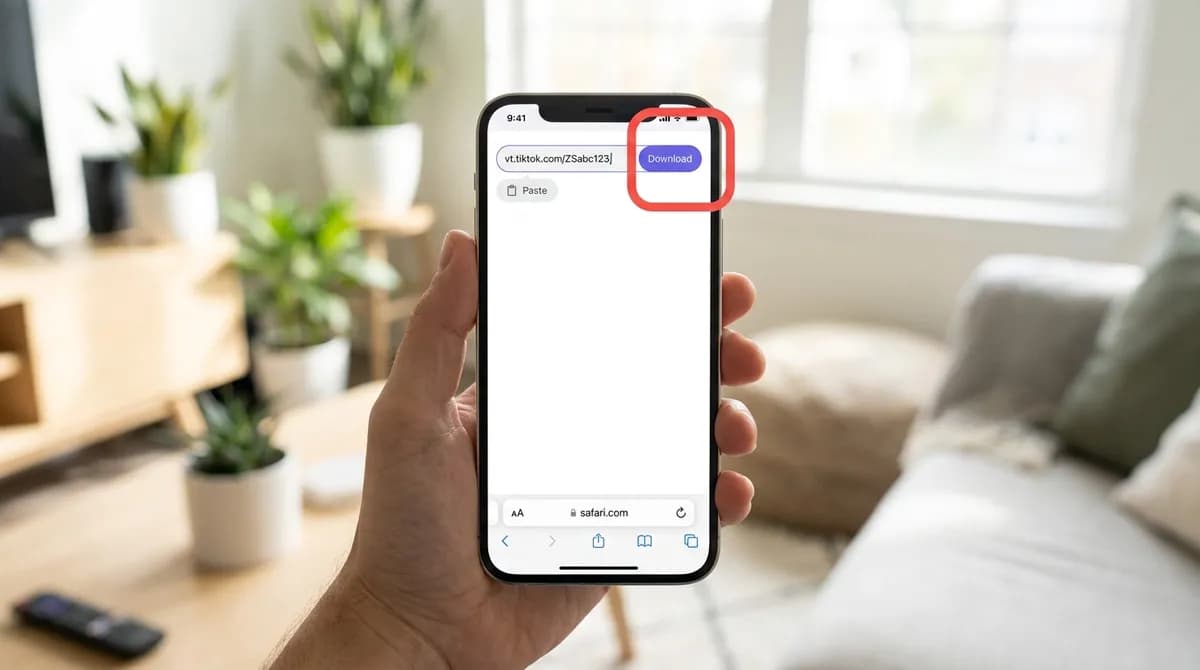
Switch to Safari and open the TikTok video downloader. At the top of the page is an input box with a Paste button. Tap Paste and the link appears in the box. The first time a site reads the clipboard, Safari may show a small Paste bubble that you need to tap to confirm. You can also touch and hold inside the box and choose Paste from the menu.
Then tap the violet Download button. You do not choose TikTok from a list, sign in or install anything: the site detects the platform from the link, ignores tracking parameters, and shows no ads, pop-ups or countdowns while it works.
Step 3: Pick MP4 · HD and confirm the download
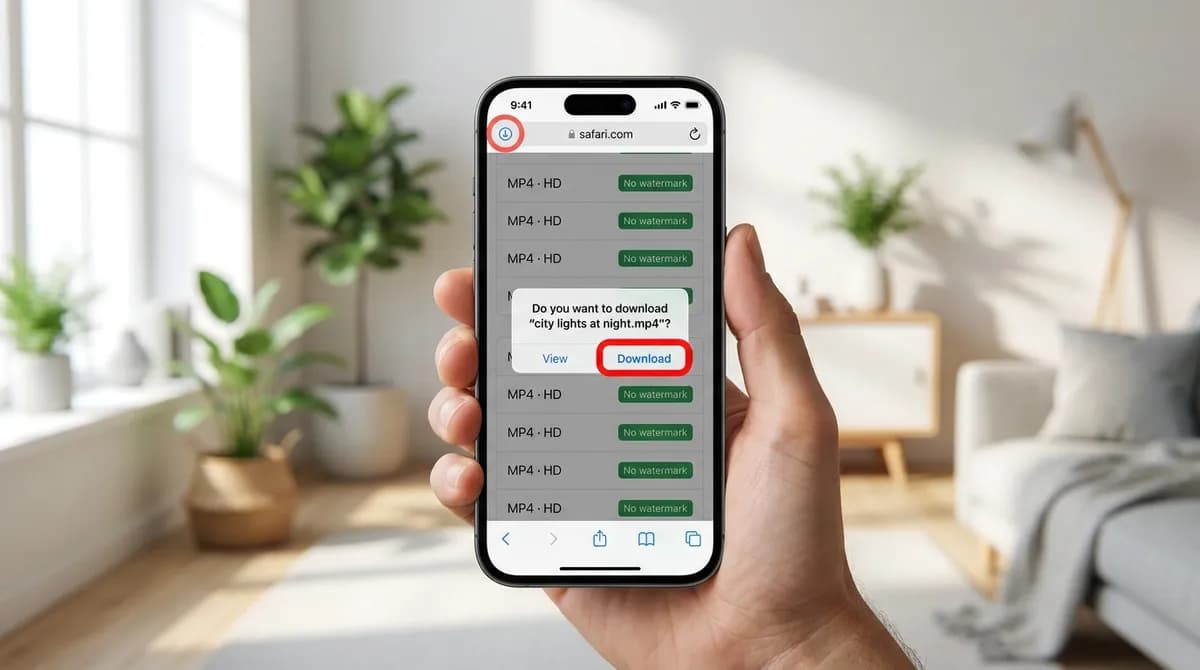
A result card appears with the video's cover, its title and a list of files. The first entry is "MP4 · HD" with a "No watermark" badge; tap it. Below it are "MP4 · Standard", "MP4 · With watermark", "MP3 · Audio only" and "JPG · Cover image", which are explained further down.
Safari now asks whether you want to download the file and shows its name, which is taken from the video's title. Tap Download. A small arrow in a circle appears in the address bar and fills up as the file saves. Wait for it to finish before you leave Safari, especially for long videos.
If a message appears instead of the list of files, wait a few seconds and tap Download again. The service that reads TikTok sometimes limits how quickly requests can be made, and a second try usually works. If the download itself stalls, resolve the link once more or pick "MP4 · Standard".
Step 4: Open the video in Files, under Downloads
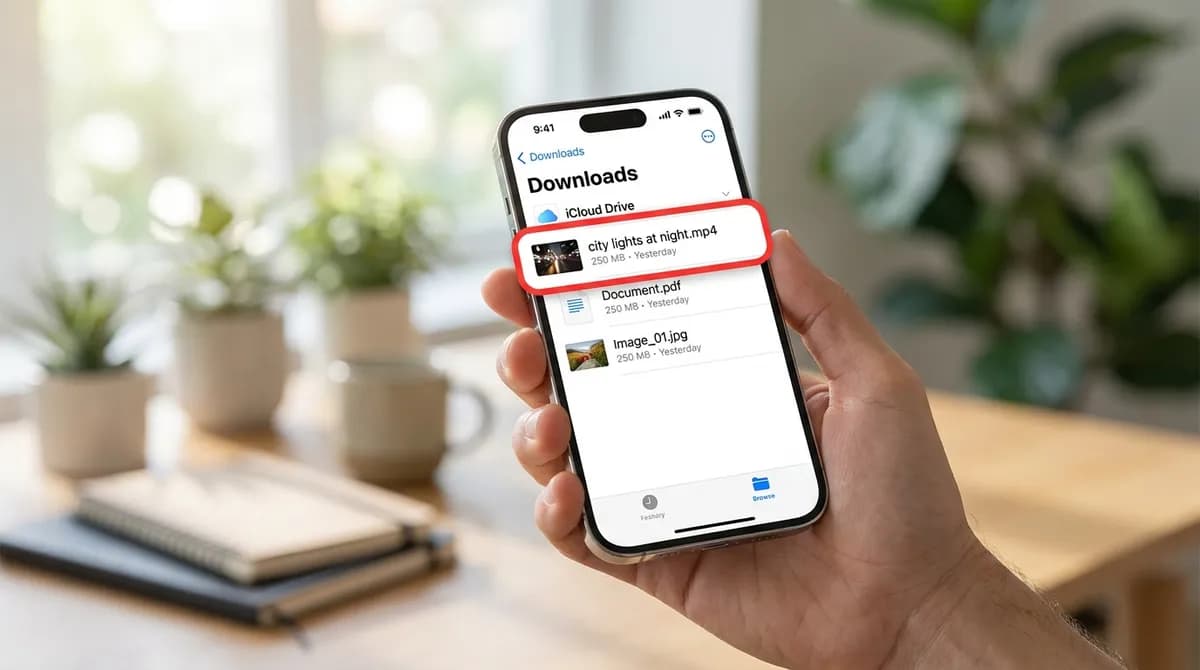
Open the Files app, tap Browse at the bottom, then open iCloud Drive and the Downloads folder. That is where Safari saves files by default. The video is named after the TikTok's title, so it is usually easy to spot; if the folder is crowded, sort it by date so the newest file is at the top.
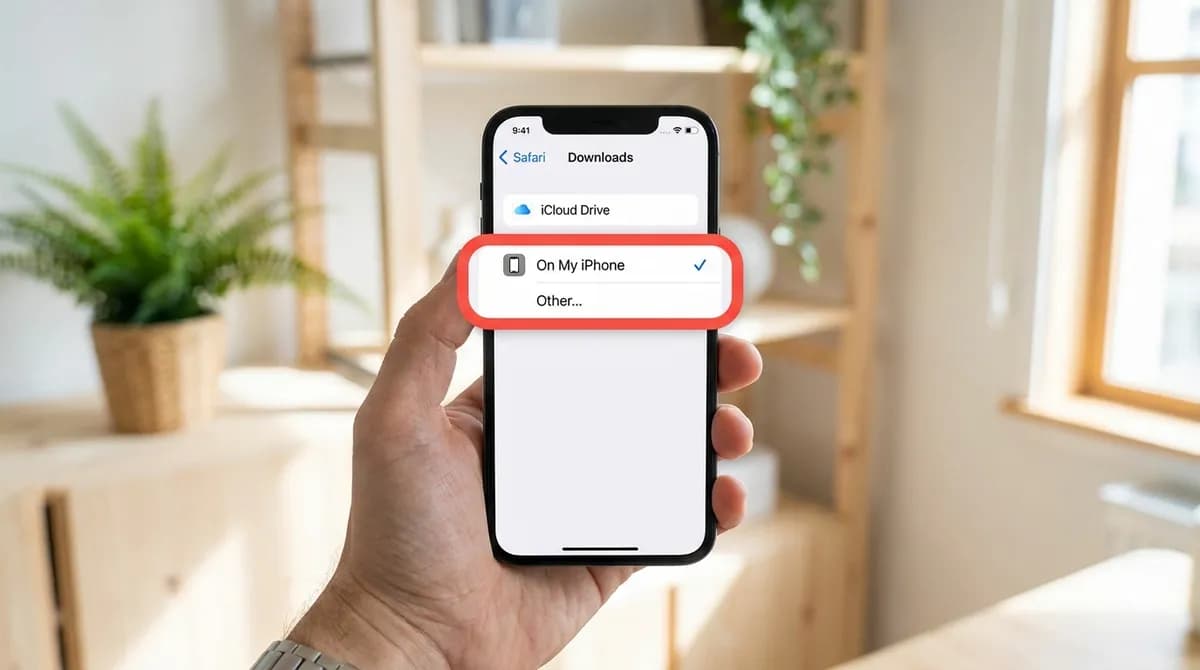
If it is not there, look in On My iPhone, Downloads. Safari uses that folder when the download location has been changed. The setting is in Settings, Safari, Downloads; on iOS 18 and later Safari is listed under Settings, Apps. A shortcut that works either way: tap the download arrow in Safari's address bar, then tap the magnifying glass next to the file to jump to it in Files.
Step 5: Tap Share, then Save Video
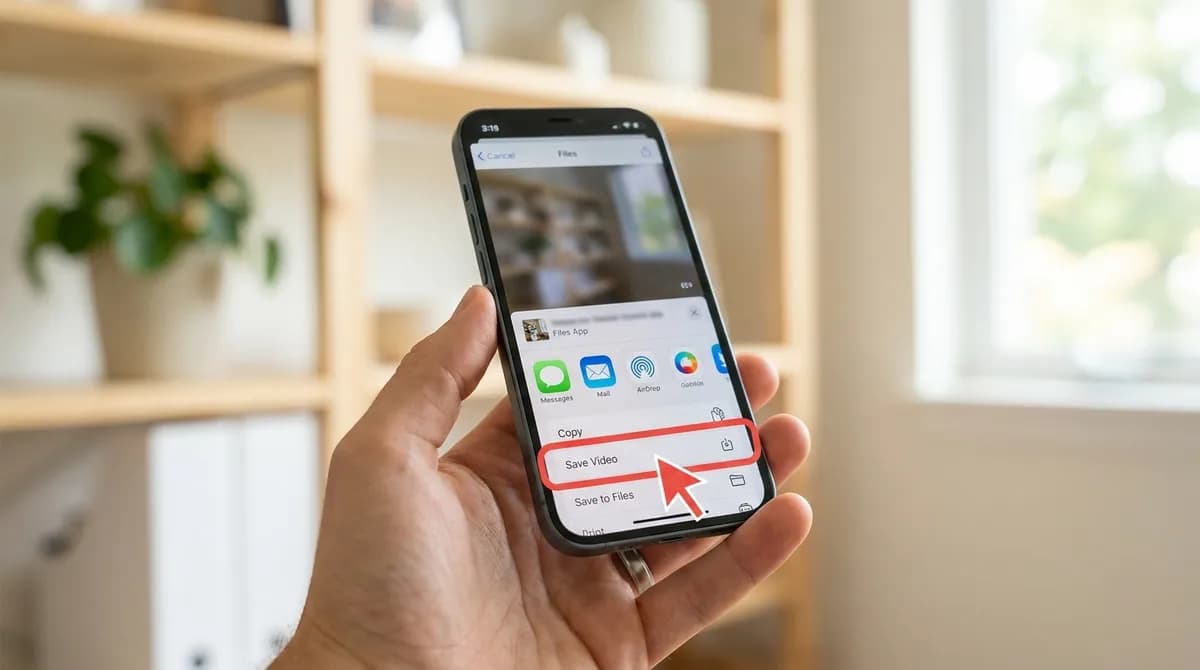
Tap the video in Files to open it. Tap the Share button in the bottom-left corner, the square with an arrow pointing up. The share sheet opens with a row of contacts, a row of apps and a list of actions underneath; scroll down if needed and tap Save Video.
The video is copied into Photos. It sits in your library like any other video, without the TikTok logo or username on the picture and without TikTok's end card, so you can trim it, crop it, add it to an album or send it on. If you cannot spot it, open Photos and look under Media Types, Videos.
If the share sheet offers Save Image instead, you downloaded a JPG rather than a video. If it offers neither, see the troubleshooting list below.
Why not use TikTok's own Save video?
It is quicker, and if the logo does not bother you it does the job. But the copy it saves has the TikTok logo and the username drawn into the picture, moving between corners as the video plays, and a closing card with the TikTok branding is added at the end. That gets in the way if you want to edit the clip, use it in a slideshow or watch it without distractions.
The button also only appears when the creator allows downloads. The steps above work for any public video, because they fetch the clean master TikTok stores alongside the branded copy. Nothing is erased or blurred: it is a different file, which is why the branded version still appears in the list as "MP4 · With watermark" if you want it.
Using Chrome on an iPhone
Chrome works the same way up to the download itself. Paste the link, tap Download, choose "MP4 · HD" and confirm. Chrome also saves into the Files app, but in its own folder: Files, On My iPhone, Chrome. From there the last step is identical: open the video, tap Share, then Save Video.
Changing where Safari saves downloads
By default Safari saves into iCloud Drive, so each video is uploaded to iCloud and counts against your iCloud storage until you delete it. If you would rather keep downloads on the phone, open Settings, Safari (under Apps on iOS 18 and later), Downloads, and choose On My iPhone. The steps in this guide stay the same; only the folder in step 4 changes.
Saving the sound or the photos instead
The same result list has more than the video. "MP3 · Audio only" saves just the sound; it stays in Files because Photos does not hold audio, and the ringtone guide shows what you can do with it. The TikTok to MP3 page lists the MP3 first.
Photo posts come back as one JPG per slide, labelled "JPG · Photo 1 of N" and so on. Download the ones you want, open each in Files, tap Share and choose Save Image. The TikTok photo downloader covers these posts on their own.
If Save Video does not appear
The share sheet only offers Save Video for a video file. If it is missing, check these:
- The download has not finished. Wait for the arrow in Safari's address bar to complete, then open the file again.
- You saved the MP3 or the cover image. Go back and pick one of the MP4 options.
- It was a photo post. Those come back as JPG files, and the share sheet offers Save Image instead.
- The iPhone is short of space. Photos needs room for its own copy while it imports the video; free some space and try again.
- The video was still downloading from iCloud. A cloud icon next to the file in Files means it is not on the phone yet; tap it and wait.
Tidying up afterwards
Once the video is in Photos, the copy in Files is a duplicate. Delete it from Downloads to get the space back; the copy in Photos is not affected. If you save TikToks regularly, it is worth clearing the Downloads folder every so often, because nothing removes old files from it automatically.
Keep in mind that a clean copy is for you. Watching it offline is ordinary personal use, but reposting it or using it commercially needs the creator's permission, and the music is usually licensed separately. The copyright guide explains where the line sits.
In short
Copy the link in TikTok, paste it into SnapVidBox in Safari, download "MP4 · HD", then open it in Files, Downloads and tap Share, Save Video. After the first time it takes a few taps, and you end up with the same clean video in your camera roll that the creator uploaded.
Frequently asked questions
Can Safari save a TikTok straight into Photos?
No. Safari treats downloads as files and puts them in the Files app; the Save Video step is what moves them into Photos. TikTok's own Save video goes straight to Photos, but that copy carries the logo and username.
Will the video keep its original quality on my iPhone?
Yes. "MP4 · HD" is the highest rendition TikTok stores for the video, commonly 1080p, with the original sound. Moving it from Files to Photos does not shrink it.
Do I need to install an app or a shortcut?
No. Safari and the Files app are enough, and you do not need an account on SnapVidBox. There are no extensions, profiles or shortcuts to add.
Can I save several TikToks in a row?
Yes. There is no daily limit, so you can paste the next link as soon as the previous download has started. In Files, you can then tap Select, choose several videos and share them together to save them to Photos in one go.
What if SnapVidBox shows an error instead of the files?
First check that the video is public: private, friends-only, age-restricted and region-blocked posts cannot be fetched. If it is public, wait a few seconds and tap Download again, since the service that reads TikTok sometimes limits requests. If a download keeps stalling, try "MP4 · Standard".
Does SnapVidBox keep a record of the videos I save?
No. The link you paste is used to fetch the list of files and is not stored. With no account involved, there is nothing that ties a download to you.
Ready to try it?
Paste any supported link and the platform is detected automatically.
Open the downloader