How to set a TikTok sound as your ringtone on iPhone and Android
TikTok has no button for turning a sound into a ringtone, but the job comes down to two moves on any phone: save the sound as an MP3 file, then give that file to your phone's ringtone settings. The first move is the same everywhere. The second depends on which phone you have.
On Android it is a minute's work, because Android accepts an MP3 directly. On an iPhone it goes through GarageBand, Apple's free music app. On most versions of iOS you cannot choose an ordinary audio file as a ringtone from Settings, and GarageBand is the way to do it on the phone itself, without a computer. It is a few more taps, but none of them costs anything.
Below are both routes step by step, followed by tips for a cleaner ringtone, how to give one person their own sound, and fixes for the problems people run into most often.
What you need
Nothing here needs an account or a paid app:
- The link to a TikTok video that uses the sound. Use a video's link, not the link to the sound's own page.
- A browser: Safari on iPhone, Chrome or any other browser on Android. The download needs no app and no sign-in.
- On iPhone, GarageBand, free from the App Store and made by Apple.
- On Android, a Files app or file manager. You only need it if your phone has no add option in its ringtone menu.
- A little free storage for the MP3 and, on iPhone, the GarageBand project.
Step 1: Save the sound as an MP3
Open TikTok and find a video that uses the sound. Tap the arrow-shaped Share button on the right-hand side, then Copy link. If you are on the sound's own page, the one that lists every video using it, tap into one of those videos and copy its link instead. The downloader works from a video's link, not from the sound page.
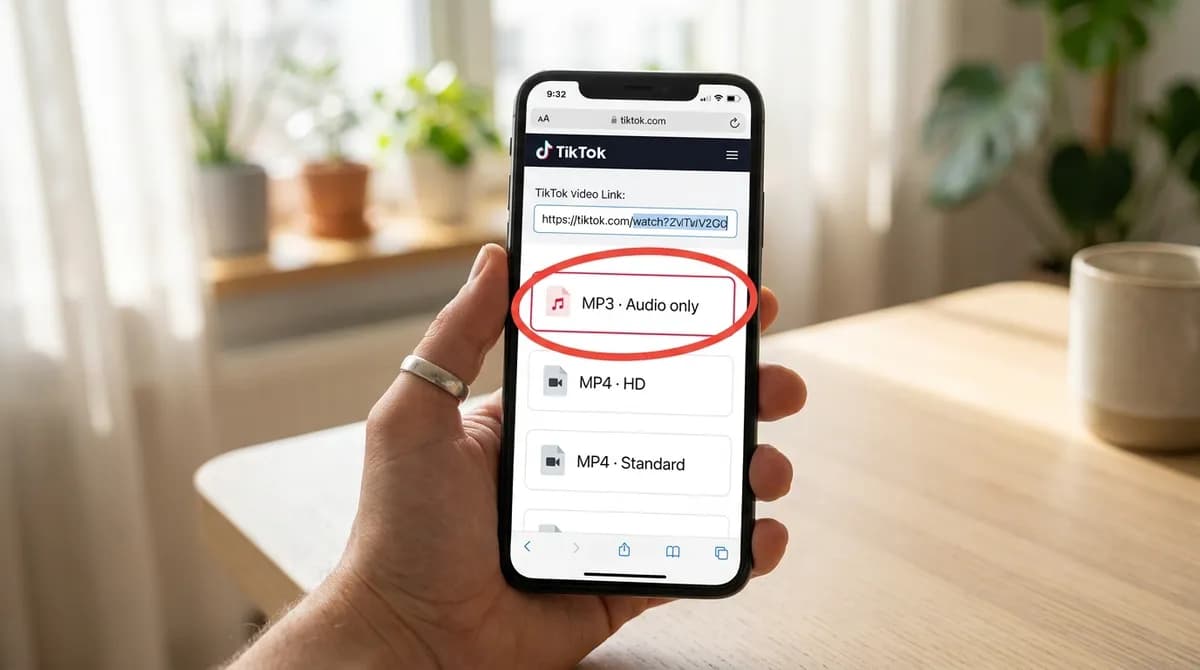
Open the TikTok to MP3 page in your browser, tap Paste so the link lands in the box, then tap Download. The list of files appears with MP3 · Audio only at the top. Tap it to save. On iPhone the file goes to the Files app, in Downloads; on Android it goes to the Downloads folder.
The MP3 is the sound exactly as it plays in that post, and it is not re-encoded. If the creator used fifteen seconds of a song, you get those fifteen seconds. If you want a different part of the same song, look for another video that uses that part.
Step 2: Import the MP3 into GarageBand (iPhone)
Install GarageBand from the App Store if it is not already on your phone. Open it and swipe through the instruments until you reach Audio Recorder, then tap it. That opens an empty recording screen. Tap the Tracks view button in the toolbar to switch to the timeline, where clips can be placed and trimmed.
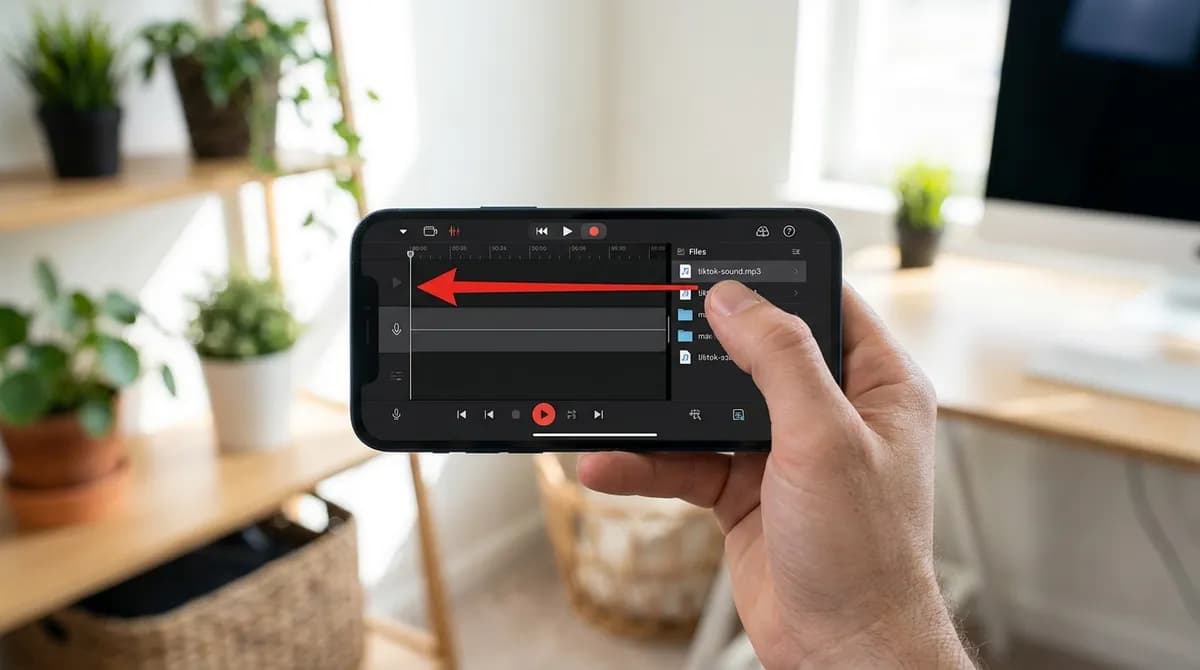
Now tap the Loop Browser button at the top right. Open the Files tab and tap Browse items from the Files app. Go to Downloads, tap the MP3, and it appears in the list inside GarageBand.
Touch and hold the file in that list, then drag it onto the track and let go at the very start, against the left edge of the timeline. If it lands a little to the right, the ringtone begins with silence, so drag it back until it lines up with the start.
Step 3: Trim it to 30 seconds or less (iPhone)
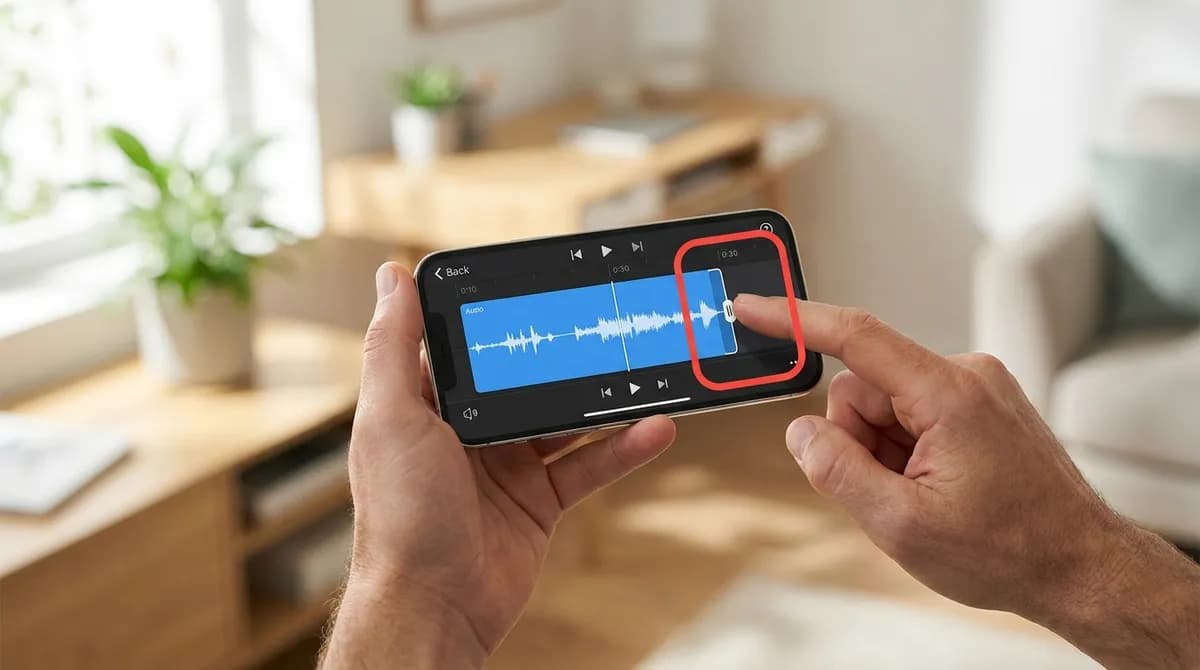
Tap the clip to select it. Drag its left edge to the right to cut off any quiet lead-in, then drag its right edge to set where it ends. Aim for 30 seconds or less. Once you have trimmed the start, drag the whole clip back to the beginning of the track so there is no gap before the sound.
Tap Play to hear it. If playback stops after a few seconds even though the clip is longer, the song section is set to a fixed length. Tap the + button at the top right of the timeline, tap Section A and turn on Automatic, and the whole clip plays.
You do not have to hit the 30-second limit exactly. When you export, GarageBand offers to shorten anything longer, but trimming it yourself means you decide which part stays.
Step 4: Export it as a ringtone (iPhone)
Tap the down arrow at the top left and choose My Songs. Your project is saved there, usually as My Song. Touch and hold it, tap Share, then tap Ringtone. Give it a name you will recognise in the list, such as the song title, and tap Export.
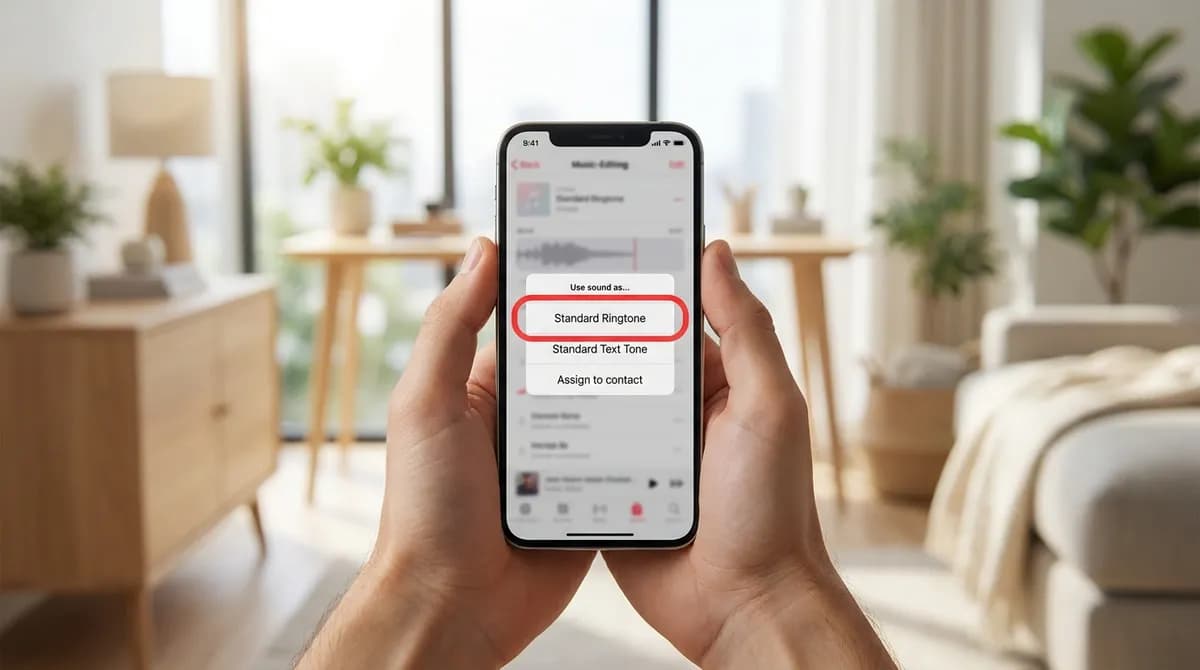
When the export finishes, tap Use sound as… and choose Standard Ringtone. The same menu also offers Standard Text Tone and assigning the sound to a contact. If you skip this, the ringtone is still saved and you can pick it later.
To check or change it later, open Settings, then Sounds & Haptics, then Ringtone. Ringtones you made appear at the top of the list, above the built-in ones.
Step 5: Set the MP3 as your ringtone (Android)
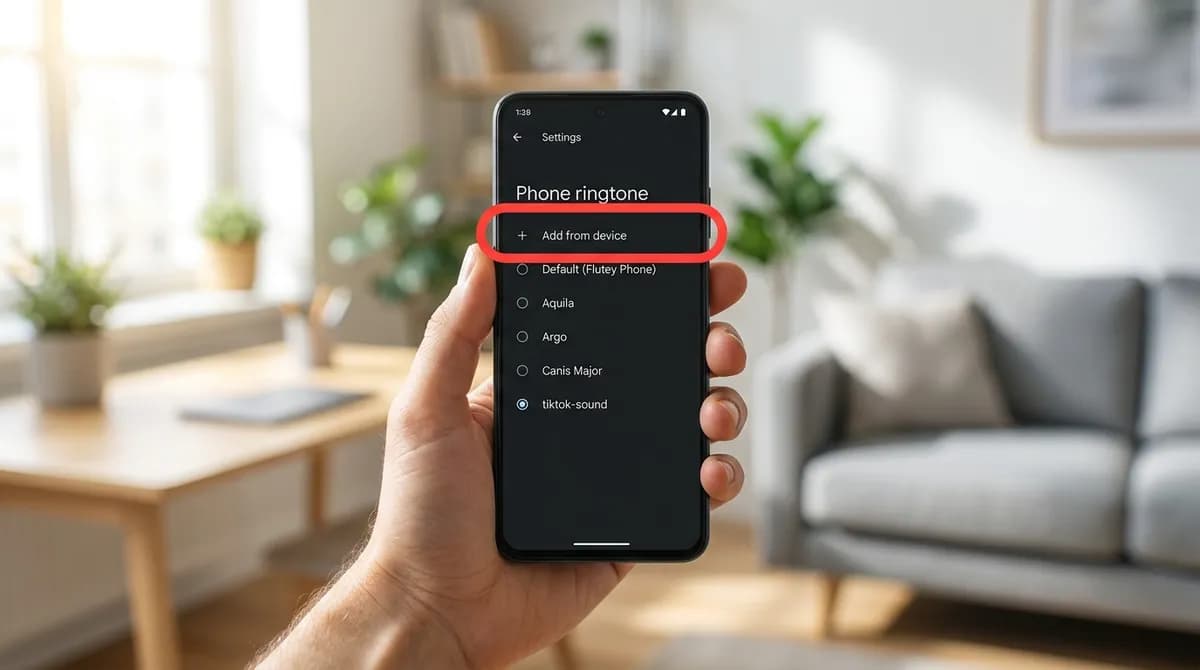
Android takes the MP3 as it is, so there is no editing app in the middle. Open Settings, then Sound and vibration. On some phones the menu is called Sounds or Sound, and the names vary by manufacturer, but the route is the same.
Tap Phone ringtone. Look for a + button or an option called Add from device, sometimes at the top of the list and sometimes at the bottom, and choose the MP3 from the Downloads folder. It is added to the list and selected.
If your phone has no add option, open the Files app or the phone's own file manager, find the MP3 in Downloads and move it into the folder called Ringtones in internal storage. Go back to Phone ringtone and it appears with the built-in tones. Android does not require a 30-second limit, but the ringtone always plays from the start, so a sound with a slow opening is still worth trimming.
Tips for a better ringtone
- Start where the sound starts. Many TikTok sounds open with a second or two of silence or talking, which feels long when the phone is ringing.
- Put the hook first. A call often goes to voicemail within about half a minute, so the recognisable part should play straight away.
- Compare the volume with a built-in tone. Some sounds are mixed quietly. If yours is hard to hear, try another video that uses the same song; different uploads can be louder.
- Be careful with sounds that open with speech. A voice-over that starts with someone talking is easy to mistake for a person in the room.
- Test it once before relying on it. Play it from the ringtone list, or ask someone to call you.
Giving one contact their own ringtone
A sound for one person is often more useful than a new default, because you know who is calling before you look. On iPhone, open Contacts (or the Contacts tab in the Phone app), choose the person, tap Edit, then Ringtone, and pick your sound from the top of the list. Tap Done to save.
On Android, open the person in the Contacts app and look for Ringtone or Set ringtone, often in the menu behind the three dots. The MP3 you added in step 5 is in that list. As with the main sound settings, the wording differs from one phone to another.
Troubleshooting
Most problems come down to one of these:
- The ringtone is not in the list on iPhone. Check that the export finished and that you chose Ringtone in the Share menu, not a song format. Then open Settings, Sounds & Haptics, Ringtone and look at the very top.
- GarageBand cannot find the MP3. Use Browse items from the Files app, and check both iCloud Drive and On My iPhone for the Downloads folder, since Safari can save to either.
- The sound stops after a few seconds in GarageBand. The section length is fixed. Tap +, then Section A, and turn on Automatic.
- The file is too long. On iPhone, GarageBand offers to shorten it to 30 seconds when you export. On Android a longer file works, but trim it if the good part is not at the start.
- There is no add option on Android. Move the MP3 into the Ringtones folder with a file manager, then reopen the ringtone list.
- The MP3 is only part of the song. That is the part the creator used. Find another video that uses the section you want.
- The link does not work. Use the link of a video rather than the sound page, and check that the video is public. Private and friends-only posts cannot be fetched.
A note on music rights
A ringtone on your own phone is personal use. Passing the file around, uploading it to a ringtone site or selling ringtones made from TikTok sounds is a different matter: creators own their videos, and much of the music on TikTok is licensed to the platform for use inside the app, not for copies elsewhere. Rules differ by country and this is not legal advice; the guide to downloading and copyright covers it in more detail.
In short
Save the sound from a video link on the TikTok to MP3 page, then either hand the MP3 to Android's ringtone settings or pass it through GarageBand on an iPhone. If you want the video as well as the sound, the TikTok video downloader saves it without the watermark, and the guide to saving a TikTok to your iPhone shows how to move it into Photos.
Frequently asked questions
Do I need an account or an app to save the TikTok sound?
No. SnapVidBox runs in the browser with no account, no app, no ads and no daily limit. Paste the video's link, tap Download and save the MP3; the link is not stored.
Is there a way to do this on iPhone without GarageBand?
On the phone itself, GarageBand is the free route. On most iOS versions Settings will not let you choose an ordinary audio file as a ringtone, and GarageBand's Ringtone export is what puts the sound into that list.
Can I use the sound as a text or notification tone instead?
Yes. On iPhone, choose Standard Text Tone after the export, or pick the sound later under Settings, Sounds & Haptics, Text Tone. On Android, the notification sound setting sits next to the ringtone one and usually has the same add option.
Will the ringtone sound worse than it does on TikTok?
The MP3 from SnapVidBox is the same audio TikTok plays in that post, not re-encoded. GarageBand converts it to Apple's ringtone format on export, which makes no audible difference at ringtone length. A sound that was mixed quietly will stay quiet, though.
What happens if I delete the MP3 after setting the ringtone?
On iPhone the ringtone keeps working, because GarageBand exported its own copy. On Android the phone usually plays the file where it is stored, so deleting or moving it can switch you back to a default tone. If you want to tidy Downloads, move the MP3 into the Ringtones folder first.
Can I keep several TikTok ringtones and switch between them?
Yes. Each GarageBand export adds another entry at the top of the iPhone's ringtone list, and every MP3 you add on Android stays in its list. Switch between them in the ringtone settings whenever you like.
Ready to try it?
Paste any supported link and the platform is detected automatically.
Open the downloader