How to download TikTok videos on a PC or Mac
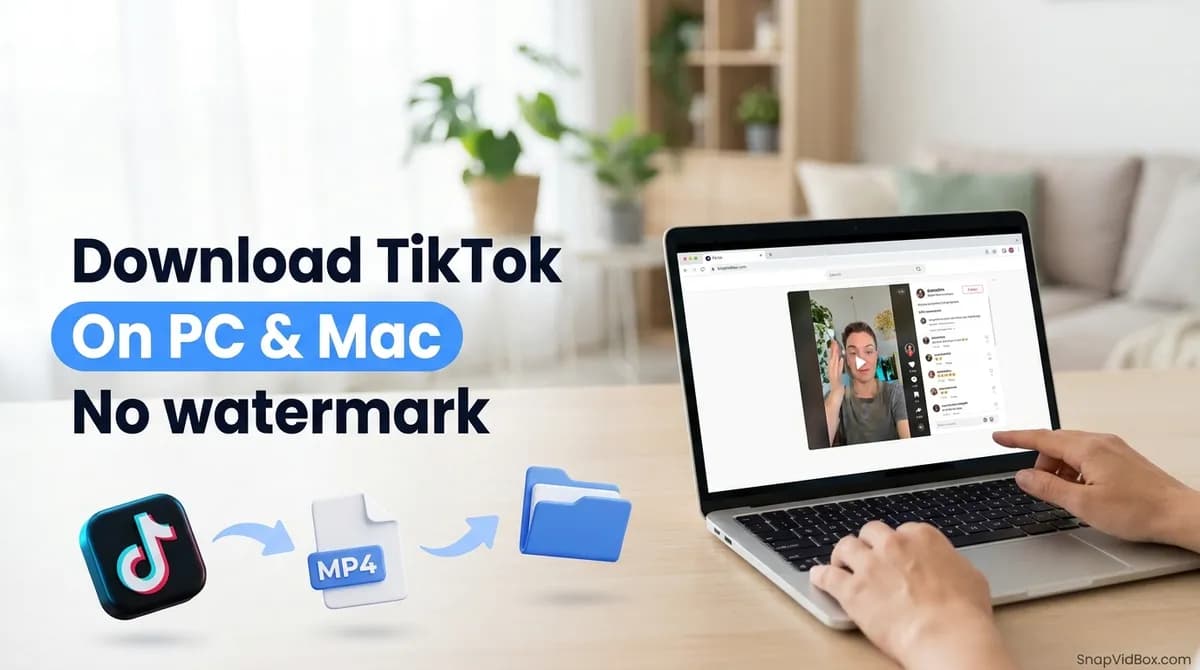
To download a TikTok video on a computer, open it on tiktok.com, copy the link from the address bar, paste it into the TikTok video downloader and click the file you want. The video lands in your Downloads folder as an MP4 without the TikTok logo, usually within a few seconds.
Nothing needs installing. TikTok runs in the browser, and so does the download: no desktop app, no browser extension, no account. The steps are the same in Chrome, Edge, Firefox and Safari, on Windows and on macOS, so this guide covers both and only splits where the keyboard shortcuts or the folders differ.
Below are the four steps in detail, then which of the files on offer to choose, what to do if the video will not play, how to save several videos in a row, and a short list of fixes for the problems people run into most.
What you need
A short list, and you probably have all of it already:
- A Windows PC or a Mac with an up-to-date browser: Chrome, Edge, Firefox or Safari.
- The TikTok video you want, open on tiktok.com in another tab.
- A public video. Private, friends-only, deleted, age-restricted and region-blocked posts cannot be fetched by any downloader.
- A little free disk space. Short clips take very little; long HD videos take more.
Step 1: Copy the video's link from tiktok.com
Open the video on tiktok.com so that it plays on its own page. The address bar now holds its full link, in the form tiktok.com/@name/video/ followed by a long number. Click once in the address bar to select the whole address, then copy it with Ctrl+C on Windows or Cmd+C on a Mac.
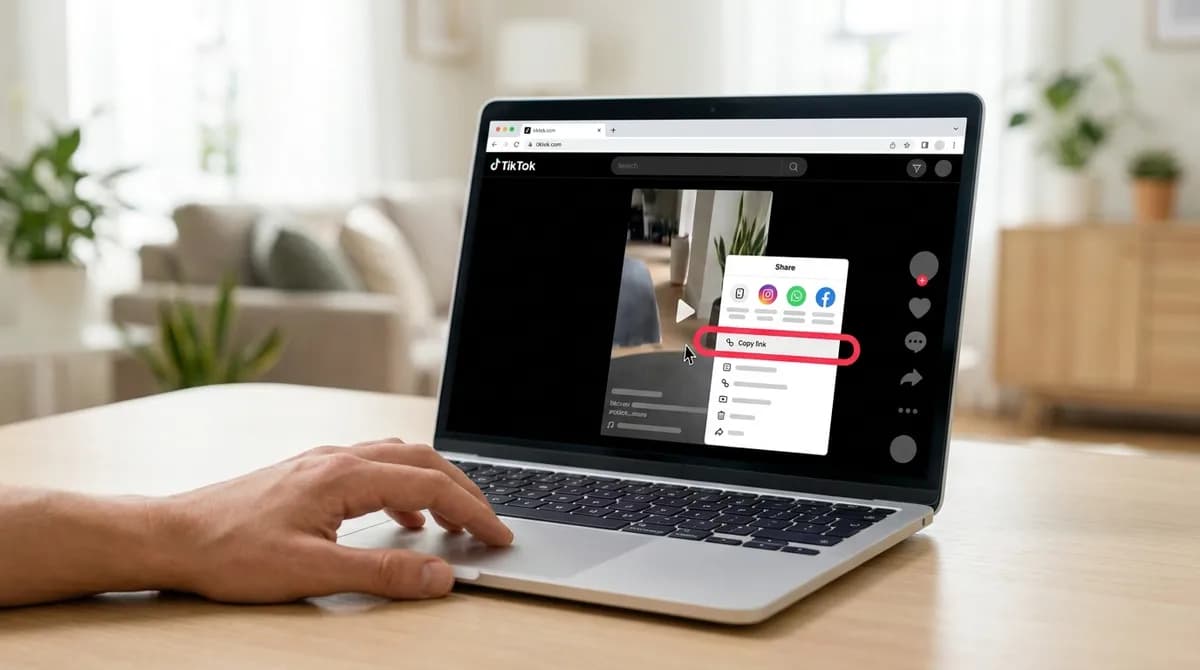
If you are scrolling the For You feed rather than looking at one video, there is no need to open it first. Click the Share arrow beside the video and choose Copy link; TikTok shows a short confirmation that the link was copied. Both kinds of link work, and you get the same files from either.
The usual mistake at this step is copying the wrong address. A profile page (tiktok.com/@name with no /video/ part), a search page or a hashtag page is not a link to one video, so the downloader cannot tell which clip you mean. Check that what you copied has /video/ in it, or use Copy link from the Share menu, which always points at a single video.
Step 2: Paste the link and click Download
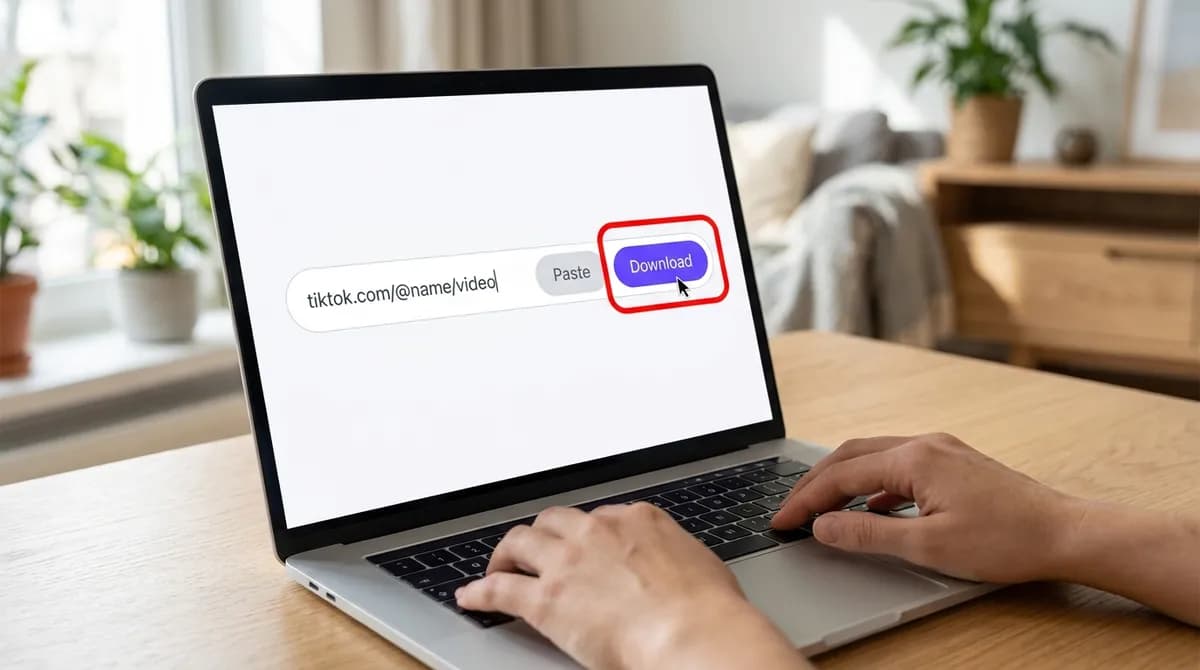
Open the TikTok video downloader in a new tab. The page has one box for the link, with a Paste button and a violet Download button beside it. Click Paste, or click in the box and press Ctrl+V on Windows or Cmd+V on a Mac. The first time you use the Paste button, the browser may ask for permission to read the clipboard; allow it, or paste with the keyboard instead.
Then click Download. There is no menu to pick TikTok from: the site recognises the platform from the link on its own. The server fetches the files TikTok already serves for that video and lists them for you.
If an error message appears instead of a result, read it before trying again. A message saying the post is unavailable usually means it is private or has been deleted. If you have made several requests in a short time, the parser may be rate-limiting for a moment; wait a few seconds and click Download again.
Step 3: Pick the file you want
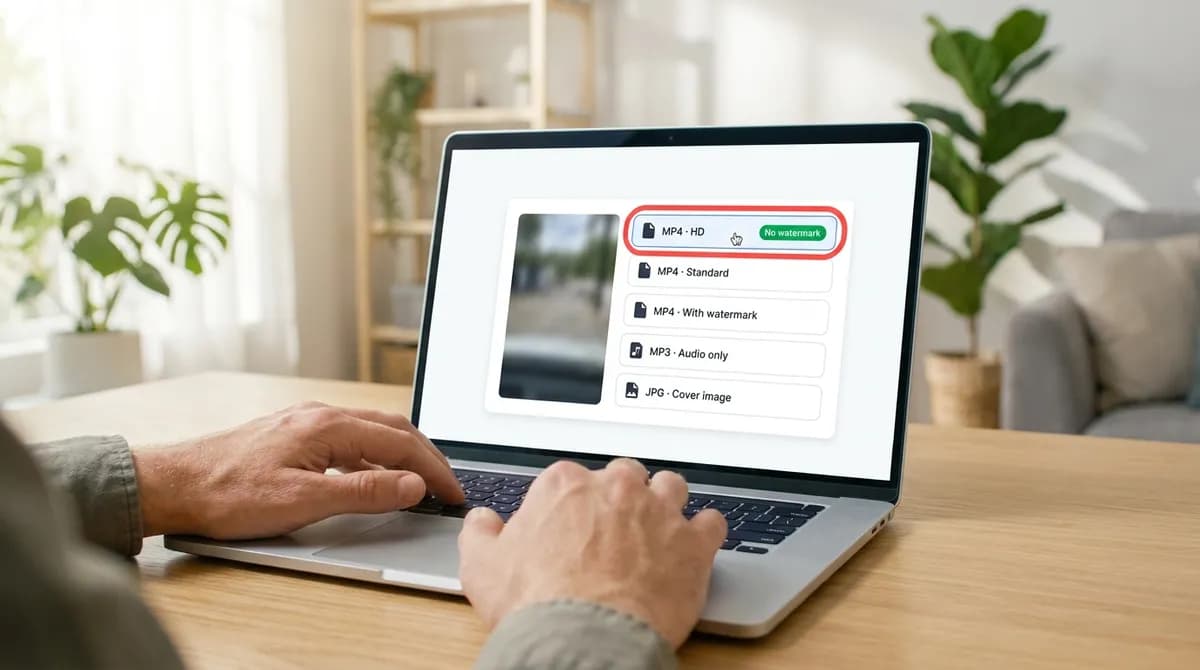
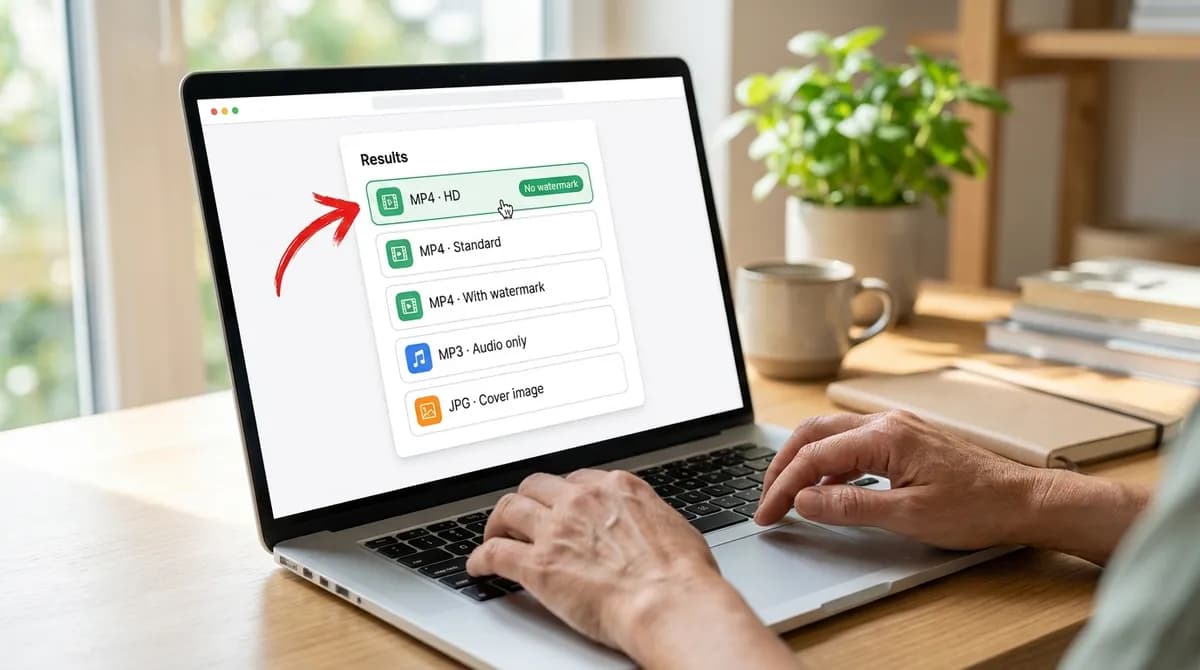
After a moment a result card appears with the video's cover, its title and a list of files. For a typical TikTok video the list holds MP4 · HD with a No watermark badge, MP4 · Standard, MP4 · With watermark, MP3 · Audio only and JPG · Cover image. Not every post offers all five; it depends on what TikTok stores for that video.
For most people the first entry is the right one. It is the unbranded master TikTok keeps alongside the copy shown in the app, so there is no logo or username over the picture, and nothing has been cropped or blurred to get there. The section on which file to pick, further down, explains when one of the others is the better choice.
Click the entry you want. The browser saves the file to your Downloads folder and names it after the video's title, so you can tell clips apart later without renaming them.
Step 4: Open the video from your Downloads folder
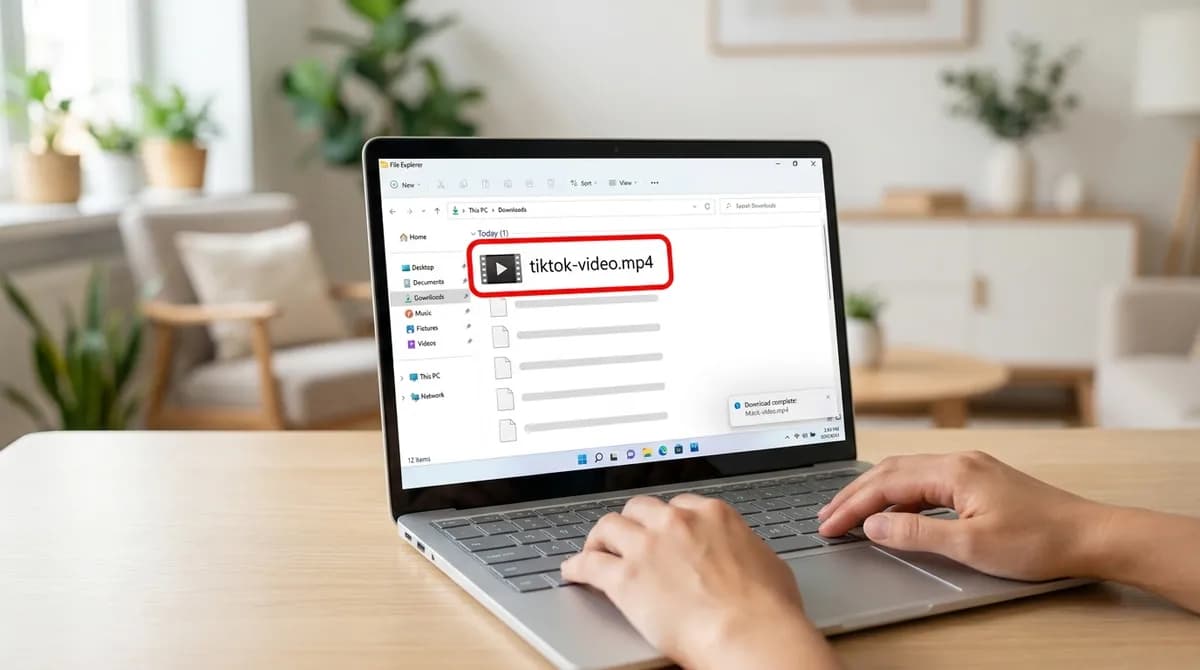
On Windows, open File Explorer and click Downloads in the left-hand panel. In Chrome or Edge, Ctrl+J opens the list of recent downloads, and clicking the file there opens it straight away. Double-clicking the MP4 plays it in your default video app.
On a Mac, open Finder and choose Downloads in the sidebar, or click the Downloads stack in the Dock. In Safari, the downloads arrow at the top right of the window lists recent files; the magnifying glass next to each one shows it in Finder. QuickTime Player opens the file with a double-click.
If the file is not where you expect, your browser may be set to save somewhere else or to ask each time. Chrome, Edge and Firefox show the download location in their settings; Safari shows it under Settings, General, File download location.
Which file to pick
The labels in the list tell you what each file is. Here is when each one makes sense:
- MP4 · HD, No watermark: the highest rendition TikTok stores for the video, commonly 1080p. It is not upscaled, so a clip uploaded at a lower resolution stays at that resolution. Pick it for editing, for a big screen, or when you want the highest-quality copy.
- MP4 · Standard: the same clean video in H.264, the format every player, editor and chat app accepts. It is not always smaller than the HD file, which often uses the more efficient HEVC, but it is the one to pick when the HD file will not play or upload.
- MP4 · With watermark: the copy as it appears in the app, with the TikTok logo and the creator's username. Pick it when you want the credit to travel with the clip.
- MP3 · Audio only: the sound on its own. The TikTok to MP3 page lists it first, and the ringtone guide shows what you can do with it next.
- JPG · Cover image: the thumbnail, handy as a poster frame or a reference image.
If the HD video will not play on Windows
Some HD files are encoded with HEVC, also called H.265. It keeps files small at the same quality, but Windows does not play it out of the box. The symptoms are an error in the Films & TV app, sound with a black picture, or a file that will not open at all.
There are three ways round it. Open the file in VLC, the free media player, which plays HEVC as it is. Add Microsoft's HEVC video extension, after which Films & TV can play it. Or go back and download MP4 · Standard instead. On a Mac, QuickTime plays both kinds of file, so the problem does not come up there.
Some video editors have the same trouble importing HEVC. If yours refuses the HD file, the standard file is the quickest fix.
Saving several videos in a row
There is no queue, no countdown and no daily limit. Once the first file has started downloading, paste the next link into the box and click Download again. Each request is handled on its own, and links are not stored afterwards.
If you are saving a lot of clips in one sitting, keep TikTok in one tab and the downloader in another, so that each video is a copy, a tab switch and a paste. The tool works one link at a time, so a set of videos means one link per video.
If a link fails after several that worked, that is usually rate-limiting rather than a problem with the video. Wait a few seconds and try it again.
Troubleshooting
When something does not work on a computer, the cause is usually one of these:
- No result appears: check that the box holds a link to a single video, with /video/ in it, not a profile, search or hashtag page.
- The post is reported as unavailable: it is private, friends-only, deleted, age-restricted or blocked in some regions. No downloader can fetch those.
- An error after several downloads in a row: the parser is rate-limited for a moment. Wait a few seconds and retry.
- The file is not in Downloads: the browser saves somewhere else or asks each time. Press Ctrl+J in Chrome or Edge, or check the download settings.
- Black picture or a player error: the HD file is HEVC. Use VLC or the standard file.
- You got a JPG instead of a video: you clicked the cover image, or the post was a photo slideshow, which the TikTok photo downloader handles.
Using the videos you save
A file on your own computer, kept for watching offline or for studying an edit, is ordinary personal use. Re-uploading it, putting it in an ad or a paid project, or sharing it without the credit needs the creator's permission, and the music on many clips is licensed separately from the video. The copyright guide covers where the line sits. If you want to repost, a short message to the creator is usually all it takes to ask.
In short
Copy the link from tiktok.com, paste it into the downloader, click MP4 · HD and open the file from your Downloads folder. If the HD file will not play on Windows, use VLC or take the standard file. The same steps work on a phone; on an iPhone the file needs one more move into Photos, described in how to save a TikTok video to your iPhone.
Frequently asked questions
Is it free to download TikTok videos on a computer with SnapVidBox?
Yes. There is no account, no ads, no pop-ups, no countdown and no daily limit. It runs in the browser you already have, so there is nothing to buy or install.
Will the downloaded video have the TikTok logo on it?
Not if you pick MP4 · HD or MP4 · Standard. Those are the unbranded copies TikTok stores alongside the one shown in the app, so the logo was never drawn on them and nothing is erased or cropped. The With watermark entry is there if you want the branded copy.
What resolution is the HD file?
It is the highest rendition TikTok stores for that video, commonly 1080p. It is not upscaled, so a clip uploaded at a lower resolution stays at that resolution.
Can I save only the music from a TikTok video on my PC?
Yes. Pick MP3 · Audio only from the list and the browser saves the sound as an MP3 in your Downloads folder. Keep in mind that the music on many clips is licensed separately, so the file is for personal listening.
Can I download a private TikTok video?
No. Only public posts can be fetched. Private, friends-only, deleted, age-restricted and region-blocked videos are not served to anyone outside their audience, so no downloader can get them.
Are the links I paste kept anywhere?
No. The server uses the link to fetch the list of files TikTok serves, hands the result to your browser, and does not store the link afterwards.
Ready to try it?
Paste any supported link and the platform is detected automatically.
Open the downloader