How to convert an Instagram Reel to MP3 and keep just the audio
Short answer
Copy the Reel's link, paste it into the Instagram to MP3 page on SnapVidBox and pick the 128 kbps MP3; the server converts the Reel's sound in a few seconds. Instagram usually stores Reel audio below 128 kbps, so the 256 and 320 kbps files are larger without sounding better. The M4A row is the original sound, unconverted, and downloads at once.
To turn an Instagram Reel into an MP3, copy the Reel's link, paste it into SnapVidBox and pick one of the MP3 rows at 320, 256 or 128 kbps. Our server converts the Reel's own sound in a few seconds and the MP3 downloads like any other file. If you would rather keep the sound exactly as Instagram stores it, the M4A row downloads at once with no conversion.
People save a Reel's audio for all sorts of reasons: a voice-over to listen to on a walk, a cooking tutorial to follow without the screen, a sound to study before recording their own take. Instagram itself only lets you save the audio as a bookmark inside the app, tied to your account and to the app being online.
The steps are the same on an iPhone, an Android phone and a computer. This guide walks through them, explains which format and bitrate to pick, and covers what the file can and cannot be used for.
What you need
- A public Reel or video post whose sound you want. Reels from private accounts and Close Friends posts cannot be opened from a link.
- Any browser: Safari or Chrome on a phone, or Chrome, Edge, Firefox or Safari on a computer.
- A player for the file. Every phone and computer plays MP3; M4A plays on iPhone, Android, Windows and Mac too.
Step 1: Copy the Reel's link
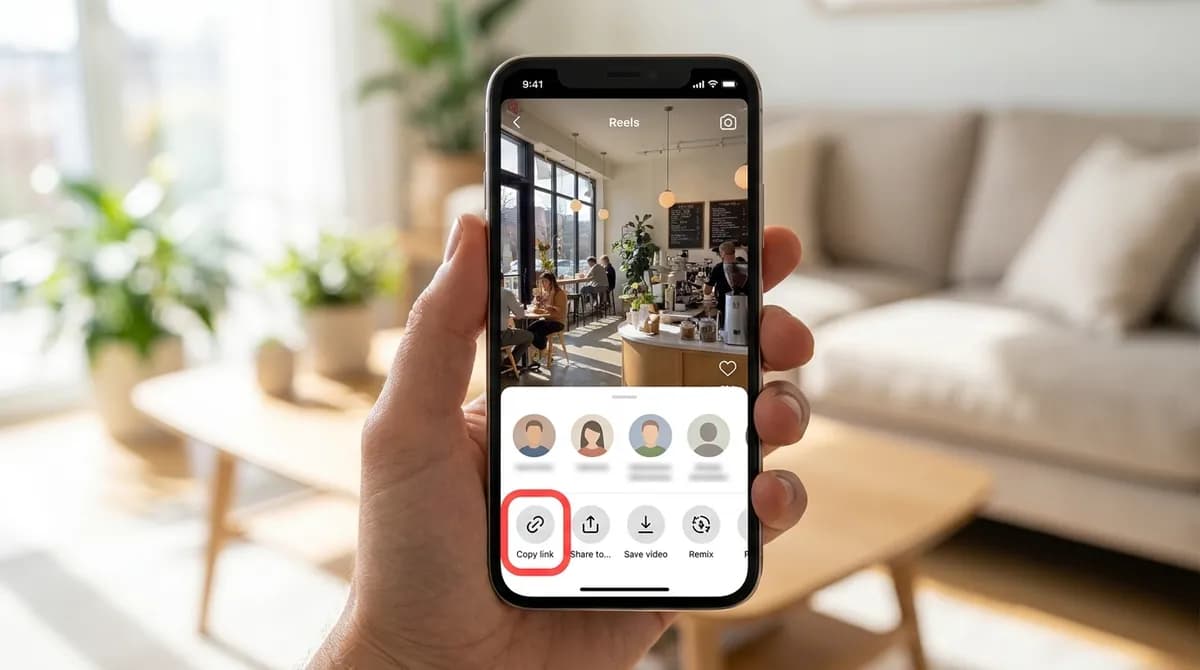
In the Instagram app, open the Reel, tap the paper-plane Share button on the right and choose Copy link. On a computer, open the Reel on instagram.com so it has its own page, and copy the address bar.
Use the link of the Reel itself, not of the sound's page that opens when you tap the music label. The sound page lists every Reel that uses it but carries no audio file of its own.
Step 2: Paste it into SnapVidBox
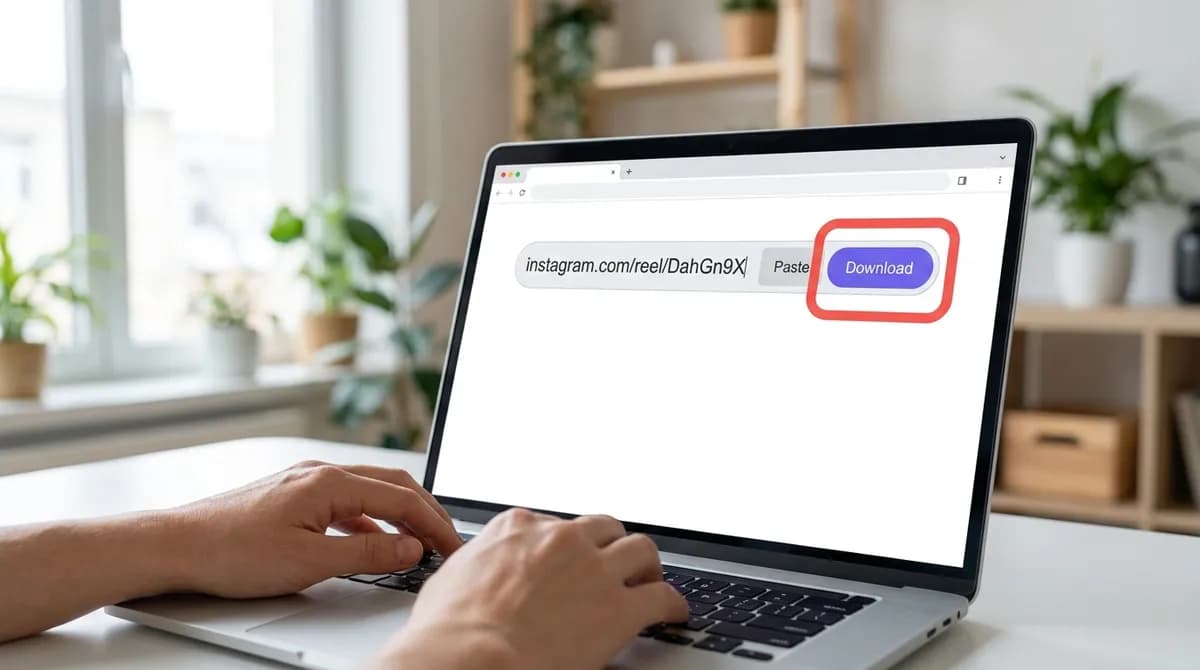
Open the Instagram to MP3 page, paste the link into the box with the Paste button or Ctrl+V, and tap Download. After a few seconds the list of files appears with the sound first; the Instagram video downloader gives the same files with the video rows on top.
Step 3: Choose MP3 or M4A
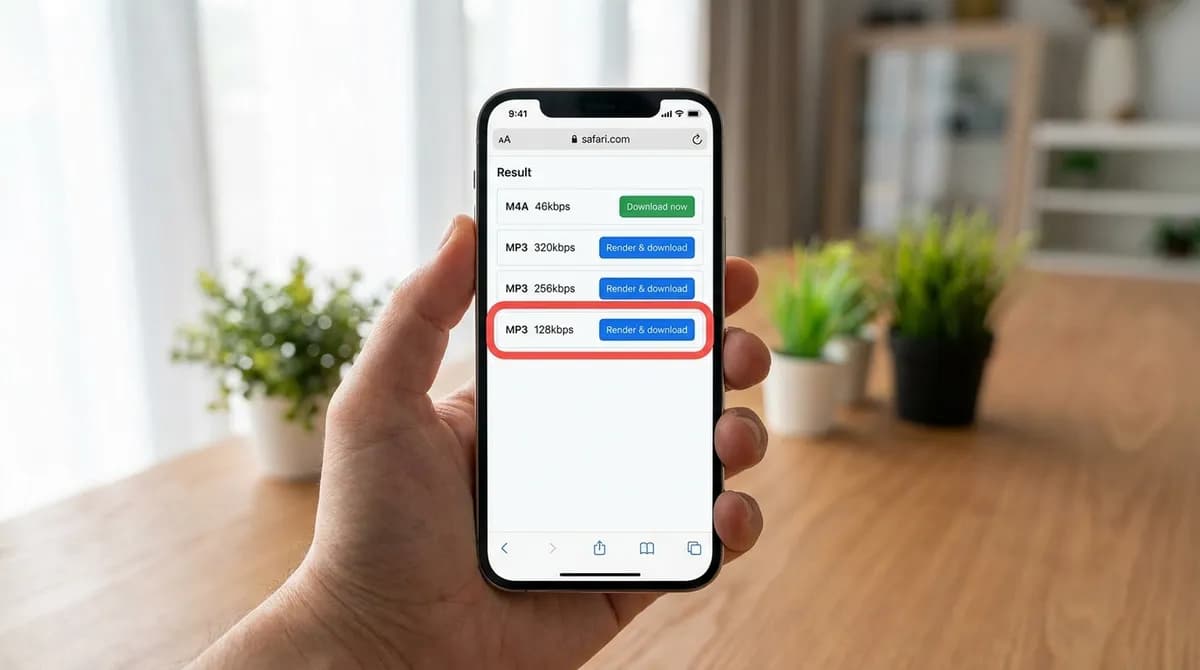
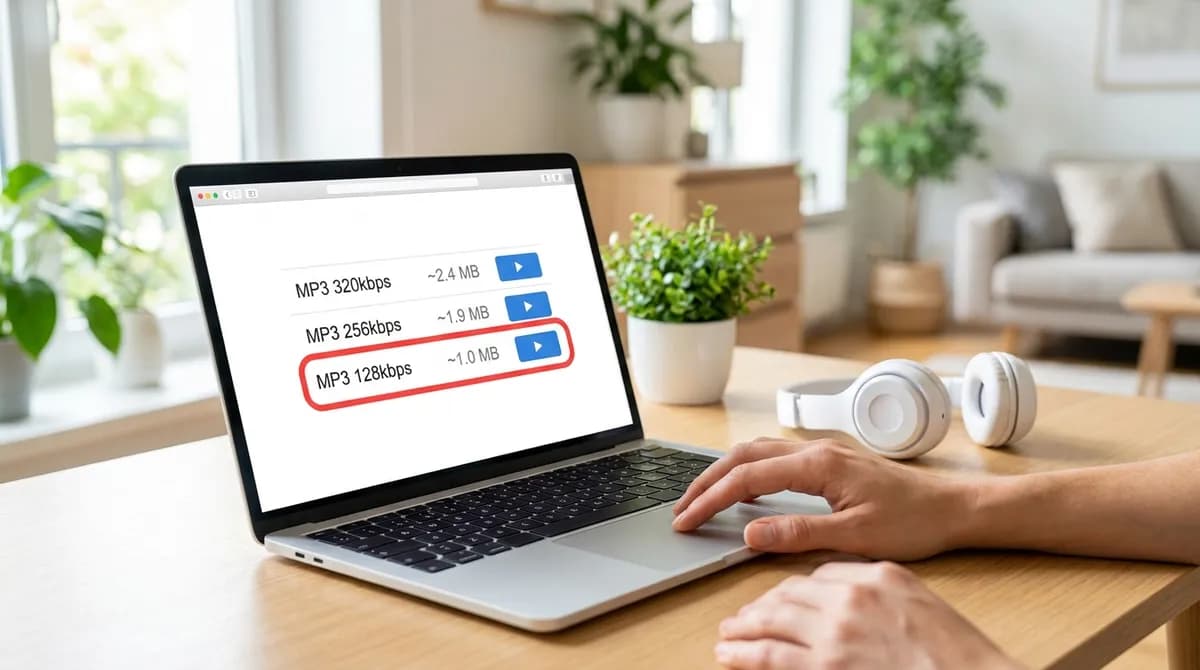
Below the video rows are the audio rows. The M4A row, marked with the original bitrate such as 46kbps, is the Reel's sound exactly as Instagram stores it, in AAC, and it has a green Download now button. The three MP3 rows at 320, 256 and 128 kbps have a blue Render & download button: the sound is converted to MP3 on our server when you tap one.
M4A is the better copy, since nothing is converted. Pick MP3 when an app, a car stereo or an editor asks for MP3 specifically.
Step 4: Pick a bitrate
Instagram usually stores a Reel's sound at well under 128 kbps, so the 128 kbps MP3 already holds everything there is. The 256 and 320 kbps files are larger but cannot sound better than the source they were made from. Choose 320 only if a device or an app insists on it.
The sizes in the list are estimates worked out from the length of the Reel; a one-minute Reel is about 1 MB at 128 kbps and 2.4 MB at 320 kbps.
Step 5: Find and play the file
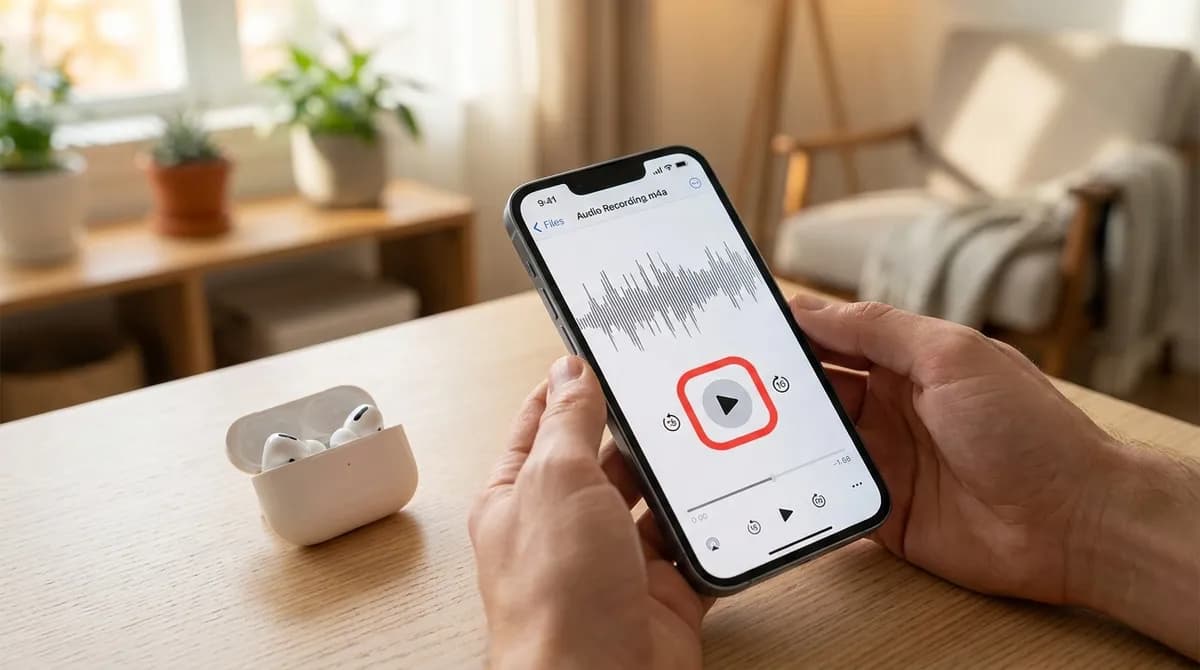
On a computer the MP3 goes to the Downloads folder. On Android it lands in Download and shows up in your music app. On an iPhone, Safari saves it in the Files app, under Downloads; tap it there to play it, or open it in a music or podcast app with Share.
Photos does not hold audio files, so on an iPhone the MP3 stays in Files. Move it to a folder of its own if you plan to keep several.
What you can do with the audio
- Listen offline: tutorials, talks and voice-overs are easier to follow with the screen off.
- Study a sound before recording your own Reel to it, at your own pace.
- Keep a voice message from a friend's Reel that you want to hear again.
- Use it as a ringtone: on Android pick the MP3 in Sound settings; on iPhone it has to be trimmed to 30 seconds in a music-editing app first, the same way as the TikTok ringtone guide shows.
Trimming the audio to the part you want
A Reel's sound often starts with a second of silence or ends with a few words you do not need. On a computer, the free editor Audacity opens MP3 and M4A files: select the part to keep, choose Trim, and export it again as MP3. On an iPhone, a music-editing app does the same, and on Android most file managers and music apps include a simple trimmer.
Trim from the M4A when you can and export once at the end. Every MP3 export throws away a little detail, so cutting an MP3 and saving it as MP3 again is the one way to make it sound worse than the original.
Saving the sound from several Reels
The site takes one link at a time with no daily limit. Paste a link, start the M4A or MP3, then paste the next one; the earlier download keeps going in the background. Each file is named after its Reel's caption, so a folder of saved sounds stays easy to sort.
If the same sound appears in several Reels, they usually share it at the same quality, so saving it from one Reel is enough. A Reel where the creator talks over the music has the voice mixed into the track; pick a Reel that plays the sound on its own if you only want the music.
Why the MP3 may sound quieter than the Reel
Instagram's player can apply its own loudness levelling, and phone speakers boost the mid-range, so the same sound can seem louder inside the app. The file itself is the sound Instagram stores, unchanged in level. Most music apps have a volume or normalisation setting that evens this out across your library.
Music and copyright
Most Reels use music from Instagram's licensed library. That licence covers playing it inside Instagram, not copying it elsewhere. Saving the sound to listen to yourself is ordinary personal use; uploading it, putting it in your own videos outside Instagram or selling it is not, and needs the rights holder's permission. When a Reel uses a song, the song itself is usually a better buy from a music store. The copyright guide goes into more detail.
If there are no audio rows
A Reel whose sound Instagram keeps only inside the complete video has no separate audio row. Download the MP4 instead; any video player can play it, and a free converter can pull the sound out on a computer.
If nothing comes back at all, the post is private, deleted or a photo, or Instagram is briefly limiting requests. Check the link, wait a few seconds and try again.
How big each audio file is
Sizes grow with the length of the Reel. For one minute of sound:
| File | Bitrate | Size per minute | When to pick it |
|---|---|---|---|
| M4A (original) | As Instagram stores it, often around 46 kbps | About 0.35 MB at 46 kbps | The untouched sound; downloads at once |
| MP3 | 128 kbps | About 0.96 MB | The default: holds everything the source has and plays everywhere |
| MP3 | 256 kbps | About 1.9 MB | Only when something asks for it; sounds the same |
| MP3 | 320 kbps | About 2.4 MB | Only when something asks for it; sounds the same |
In short
Copy the Reel's link, paste it into SnapVidBox and pick the M4A for the untouched sound or an MP3 at 128 kbps for the widest compatibility. The PC guide and the iPhone guide cover saving the video itself.
Frequently asked questions
Can I convert an Instagram Reel to MP3 without an app?
Yes. Paste the Reel's link into SnapVidBox in any browser and pick an MP3 row. The conversion happens on our server; there is nothing to install and no account.
Which is better, M4A or MP3?
M4A, because it is the sound exactly as Instagram stores it, with no conversion. Choose MP3 when an app or a device only accepts MP3.
Is 320 kbps better than 128 kbps?
Not for Instagram sound. Reels are usually stored below 128 kbps, so a 320 kbps MP3 is a larger file that sounds the same. Pick 320 only if something requires it.
Can I get the audio from an Instagram sound page?
No. The sound page lists the Reels that use it but has no audio file. Open any Reel that plays the sound and paste that Reel's link.
Where does the MP3 go on my iPhone?
Into the Files app, under Downloads. Photos does not store audio, so play it from Files or open it in a music or podcast app with Share.
Can I use the MP3 in my own videos?
Only with the rights holder's permission. The music in most Reels is licensed for use inside Instagram; outside it, keep the file for personal listening.
Related guides
How to download Instagram Reels without a watermark, free and in HD
Save a public Instagram Reel as a clean MP4 with no logo or username overlay, on iPhone, Android or PC: paste the link, take the 720p file at once or a 1080p one.
8 min read
How to save Instagram Reels to your iPhone camera roll
Instagram's own save keeps a Reel inside the app. Five steps to save an Instagram Reel or video to your iPhone camera roll, with Safari and no app to install.
8 min read
How to download Instagram videos and Reels on PC or Mac in HD
Save an Instagram Reel or video post on Windows or macOS from your browser, no software: the HD MP4 at once, 1080p made on our server, or just the sound.
8 min read
How to convert a Facebook video to MP3 and keep just the audio
Save the sound of a Facebook video or Reel as an MP3 or the original M4A, on a phone or a computer, with no app. Which bitrate to pick and which posts work.
8 min read
Sources
- Record a reel on Instagram — Instagram
- Terms of Use — Instagram
Ready to try it?
Paste any supported link and the platform is detected automatically.
Open the downloader