How to download Instagram videos and Reels on PC or Mac in HD
Short answer
Open the Reel on instagram.com, copy the address, paste it into SnapVidBox and click Download now on the 720P row, an H.264 MP4 that opens in any player. For a sharper copy, use Render & download on the 1080P row; that file is VP9, which plays in browsers, VLC and Media Player on Windows but not in QuickTime on a Mac.
To download an Instagram video on a PC or a Mac, open the Reel or post on instagram.com, copy its address, paste it into SnapVidBox and click Download now next to the MP4, or Render & download for 1080p. The file lands in your Downloads folder, named after the caption. It works the same in Chrome, Edge, Firefox and Safari, on Windows and macOS, with nothing to install.
Instagram's website has no download button, and right-clicking a Reel only offers to copy its address. The video is there, though: Instagram sends your browser a complete MP4 for every public Reel, and often a sharper copy split into a picture stream and a sound stream. SnapVidBox fetches the first as it is and joins the second into one MP4 on its server, so either way you end up with an ordinary file.
This guide covers the five steps, which file in the list to choose, what to do when a 1080p file will not open in one particular player, and the posts that cannot be saved.
What you need
- A Windows PC or a Mac with an up-to-date browser: Chrome, Edge, Firefox or Safari.
- A public Reel or video post. Private accounts and Close Friends posts cannot be opened from a link.
- A video player: Media Player or Films & TV on Windows, QuickTime on a Mac, or the free VLC on either.
- No Instagram account is needed, and you never sign in on SnapVidBox.
Step 1: Copy the video's address
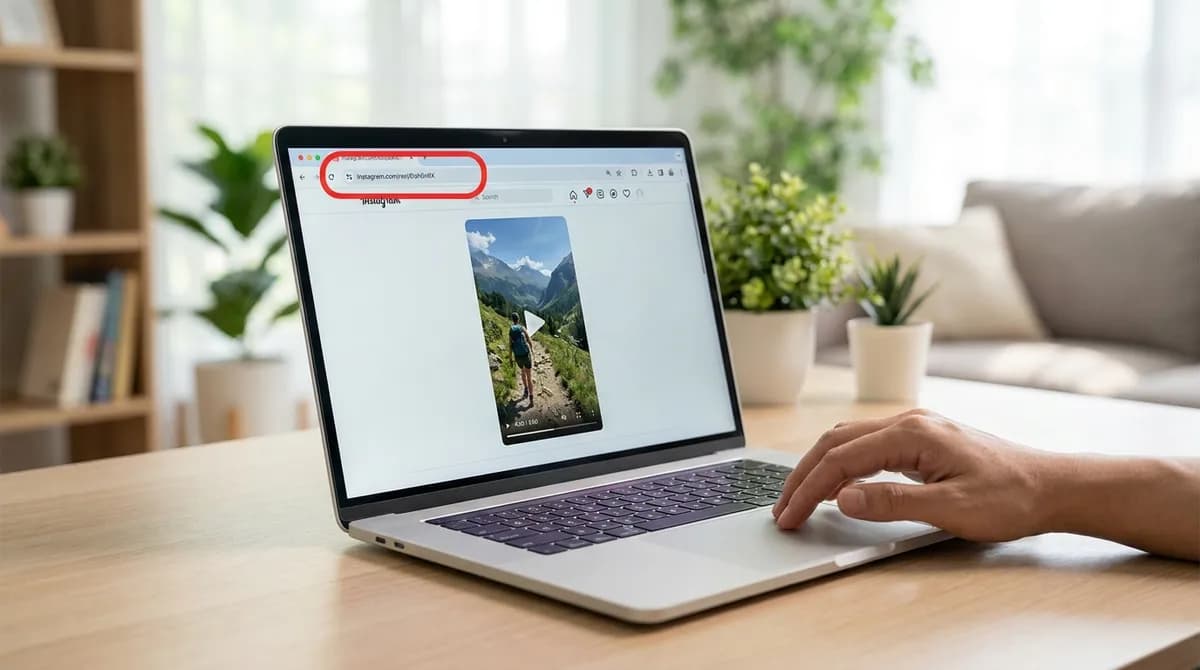
Open instagram.com and click the Reel or post so it opens on its own. The address bar then shows instagram.com/reel/… or instagram.com/p/…; click it and press Ctrl+C on Windows or Cmd+C on a Mac.
You can also click the paper-plane Share icon under the post and choose Copy link. Both give the same result. What does not work is the address of the home feed or of someone's profile: open the video itself first.
Step 2: Paste it into SnapVidBox
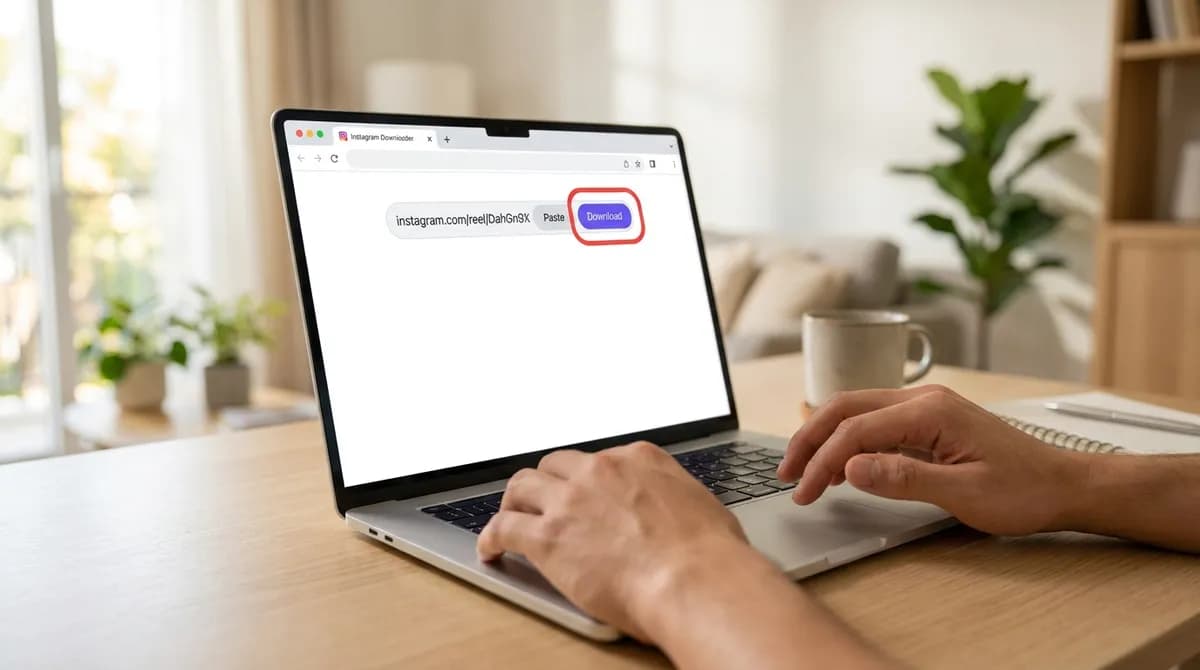
Open the Instagram video downloader in a new tab, click into the box and press Ctrl+V (Cmd+V on a Mac), or click Paste. Then click the violet Download button.
A few seconds later a table appears under the box with the cover, the caption as the title, the account name and one row per file.
Step 3: Pick a quality
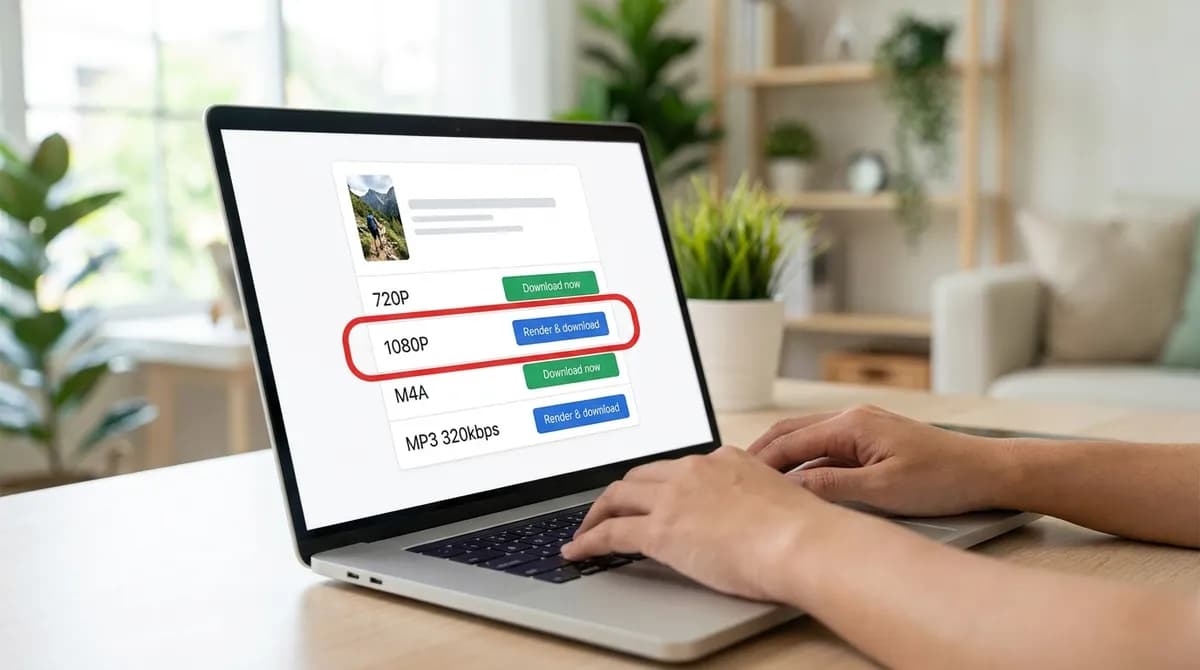
The first video row, usually 720P, has a green Download now button: it is the complete MP4 Instagram serves, H.264 video with the sound, and it downloads straight away.
When Instagram also keeps a sharper copy, a 1080P row appears with a blue Render & download button. Click it and our server joins the picture and the sound into one MP4; the download starts within a few seconds and the size shown is an estimate until then. For a big screen or an edit, take the 1080P row; for something that must open everywhere, take 720P.
Step 4: Find the file in Downloads
Chrome and Edge show the finished file in a panel at the top right, Firefox under the arrow in the toolbar, Safari under the downloads button next to the address bar. Click it there to open it, or the folder icon to see it in its folder.
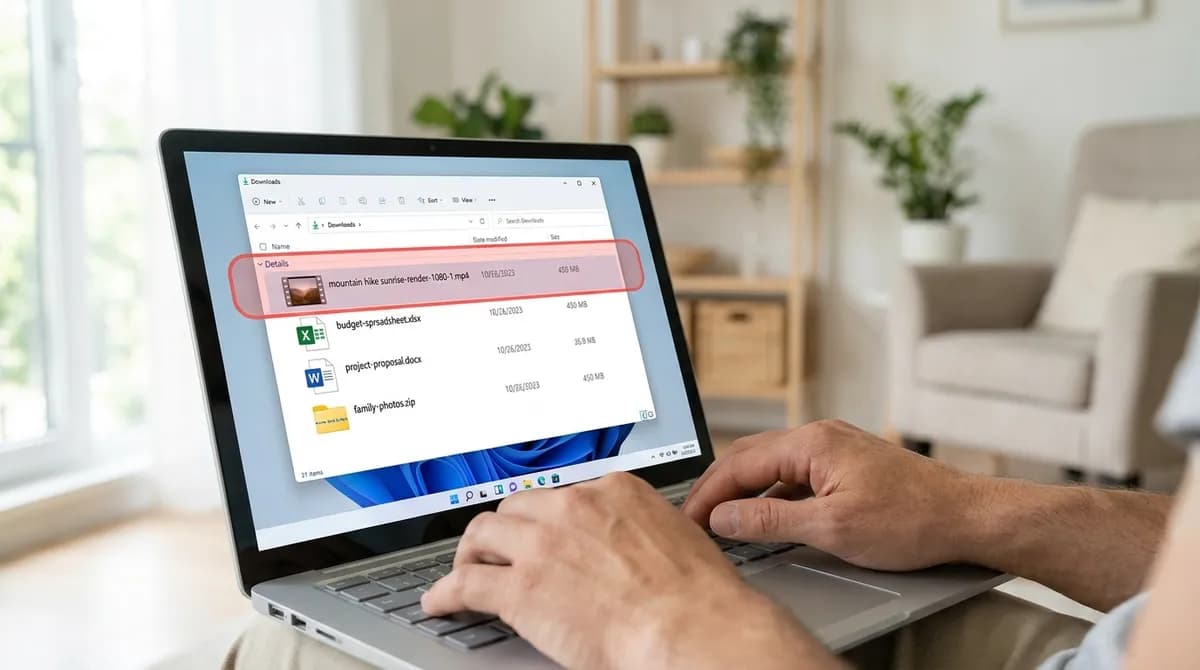
Everything goes to the Downloads folder by default: This PC, Downloads on Windows, or Downloads in the Finder sidebar on a Mac. The file is named after the caption with a short tag for the row at the end, so saving two qualities of the same Reel never overwrites one with the other.
Step 5: Play it or use it
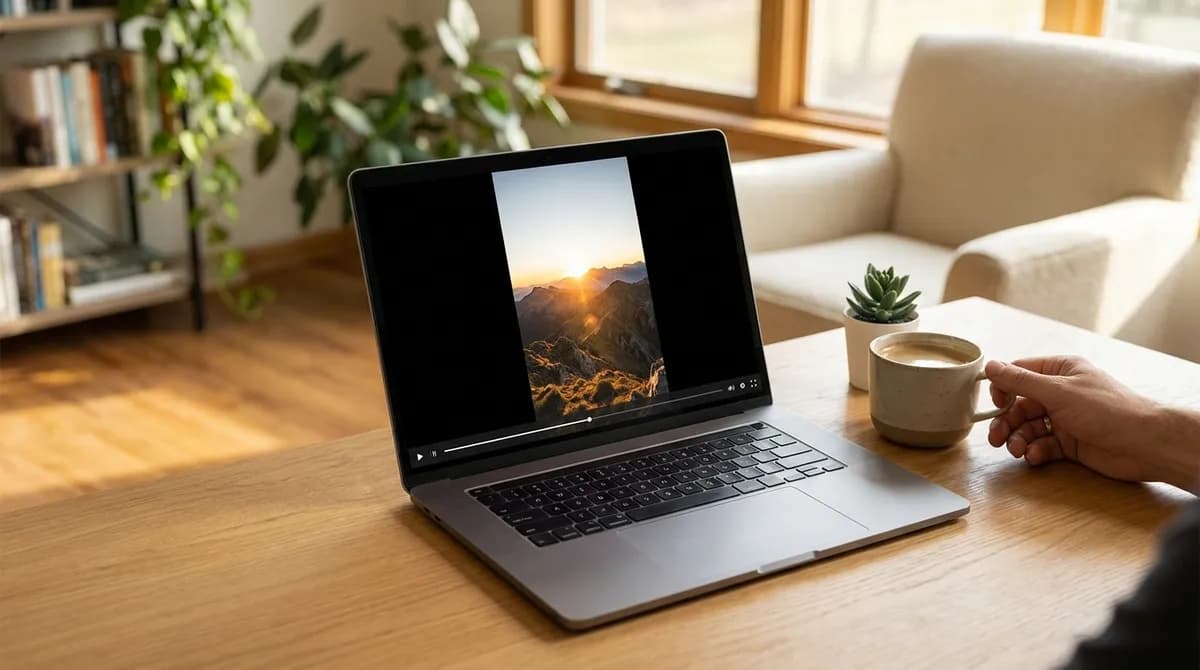
Double-click the file. On Windows it opens in Media Player; on a Mac, the 720P file opens in QuickTime. From here it is an ordinary video you can copy to a drive, drop into a project or keep in a folder of its own.
H.264 and VP9: why a 1080p file may not open
The 720P file is H.264, the format every player, phone and editor understands. The 1080P file is VP9, because that is how Instagram stores its sharper copy, and joining the picture with the sound does not re-encode it, so nothing is lost.
VP9 plays in every browser, in VLC and in Media Player on Windows 10 and 11. QuickTime on a Mac does not play it, and some older editors refuse it. If that happens, open it in VLC or IINA, drag it into a browser tab, or use the 720P file instead.
Saving only the sound
The same table lists the audio on its own: the M4A is the sound exactly as Instagram stores it and downloads at once, and the MP3 rows at 320, 256 and 128 kbps are converted on our server in a few seconds. Instagram rarely stores sound above 128 kbps, so 128 is enough for most uses. The Instagram to MP3 page lists the sound first.
Saving several Reels in a row
SnapVidBox takes one link at a time, but there is no daily limit and nothing to wait for between links. Keep Instagram in one tab and SnapVidBox in another: copy a Reel's address, paste it, start the download, then go back for the next one. Each file gets its own name from its caption, so a folder of saved Reels stays readable.
If you collect Reels for a project, make a folder for it before you start and set your browser to ask where to save each file (Chrome and Edge: Settings, Downloads, Ask where to save each file). Then every Reel lands in the right place without sorting Downloads afterwards.
Using the video in an editor
For editing, the 720P MP4 drops into any editor without a second thought. The 1080P file is sharper, and current versions of the common editors on Windows and Mac open VP9, but older ones may show it as audio only or refuse it. If that happens, either use the 720P file or convert the 1080P one to H.264 with a free tool such as HandBrake before importing it. Reels are vertical, so set the project to 9:16 if you want to keep the full frame.
Carousels, photos and Stories
A carousel with several videos lists each one as Video 1, Video 2 and so on, each with its own buttons. Photos, in a carousel or on their own, are not returned yet, and Stories cannot be saved from a link. Reels from private accounts and Close Friends posts are only shown to the people chosen, so they cannot be opened either.
On a phone the steps are much the same; the iPhone guide covers getting a Reel into the camera roll.
If it does not work
- A message instead of a table: the post is private, deleted, a photo or a Story, or the link points at a profile or the feed. Open the video on its own and copy the address again.
- A message that the link could not be resolved: Instagram limits how fast its files can be requested. Wait a few seconds and try again.
- "The server is busy preparing other files": a 1080p render is already running. Wait a minute, or take the 720P row, which never waits.
- The download stops part-way: the links to Instagram's files expire after a while. Paste the link again and download straight away.
Keep it personal
A downloaded Reel is a copy for you. Reposting someone else's video or using it commercially needs the creator's permission, and the music is usually licensed separately. The copyright guide explains what personal use covers.
Which player opens which file
The two video files compared in the players and editors people actually use:
| Player | 720p (H.264) | 1080p (VP9) |
|---|---|---|
| Chrome, Edge, Firefox | Plays | Plays |
| VLC (Windows and Mac) | Plays | Plays |
| IINA (Mac) | Plays | Plays |
| Media Player (Windows 10 and 11) | Plays | Plays |
| QuickTime (Mac) | Plays | Does not play |
| Older video editors | Imports | May refuse it or show audio only |
In short
Open the Reel on instagram.com, copy the address, paste it into SnapVidBox and pick a row: Download now for the 720P MP4, Render & download for 1080p, or an MP3 for the sound. The file is in Downloads a few seconds later.
Frequently asked questions
Is there a way to download Instagram videos on PC without software?
Yes. Everything happens in the browser: paste the link, pick a file, and it saves to Downloads. There is no extension, program or account involved.
Can I download Instagram Reels in 1080p?
Yes, when Instagram keeps a 1080p copy. It is listed with a Render & download button; our server joins the picture and the sound into one MP4 in a few seconds.
Why does my Mac not play the 1080p file?
The 1080p file uses VP9, which QuickTime does not play. VLC, IINA and every browser do. The 720p file is H.264 and opens in QuickTime.
Does the downloaded video have a watermark?
No. You get the file Instagram serves to its own player, without the logo and username Instagram adds when it lets you download a Reel in the app.
Can I download a whole Instagram profile?
No. SnapVidBox saves one Reel or post per link. Paste the next link as soon as a download has started; there is no daily limit.
Is it legal to download Instagram videos?
Keeping a copy of a public video to watch yourself is generally personal use. Reposting it or using it commercially needs the creator's permission.
Related guides
How to download Instagram Reels without a watermark, free and in HD
Save a public Instagram Reel as a clean MP4 with no logo or username overlay, on iPhone, Android or PC: paste the link, take the 720p file at once or a 1080p one.
8 min read
How to save Instagram Reels to your iPhone camera roll
Instagram's own save keeps a Reel inside the app. Five steps to save an Instagram Reel or video to your iPhone camera roll, with Safari and no app to install.
8 min read
How to convert an Instagram Reel to MP3 and keep just the audio
Save the sound of an Instagram Reel as an MP3 or the original M4A, on a phone or a computer, with no app. Which bitrate to choose, and what you can do with it.
8 min read
How to download a Facebook video on PC or Mac in HD and 1080p
Save a Facebook video or Reel on Windows or macOS from your browser, with no software: HD at once, 1080p made on our server, or just the sound as MP3.
9 min read
Sources
- Who can see and share your reels on Instagram — Instagram
- Manage reels on Instagram — Instagram
- Terms of Use — Instagram
Ready to try it?
Paste any supported link and the platform is detected automatically.
Open the downloader