How to save a Douyin video to your iPhone camera roll without the watermark
Short answer
In Douyin, tap 分享 (Share), then 复制链接 (Copy link). Paste the whole copied text into SnapVidBox in Safari, download "MP4 · 1080p", the copy without the watermark, then open it in the Files app under Downloads, tap Share and choose Save Video. It lands in Photos with the full frame, no logo and no Douyin ID. You need no Douyin account and no Chinese phone number.
To save a Douyin video to your iPhone's camera roll without the watermark, copy the video's link in Douyin, paste it into SnapVidBox in Safari and download the "MP4 · 1080p" file. Safari puts it in the Files app, in the Downloads folder. Open it there, tap Share and choose Save Video, and the video moves into Photos with the rest of your library.
Two things make Douyin different from saving a TikTok. The first is the link: Douyin's Copy link button does not copy a clean address but a line of Chinese text with a v.douyin.com link inside it, and you paste the whole thing. The second is the app itself, which is in Chinese and, outside China, often not installed at all. Neither gets in the way: the two buttons you need are named below with their meaning, and a link someone sent you works without the app.
The detour through Files is the same as for any download in Safari. Safari treats what you download as a file, and files go to the Files app rather than to Photos, so one extra step moves the video across. After the first time it is a quick routine, and everything happens in apps that come with the iPhone.
What you need
- An iPhone with Safari and the Files app. Both come preinstalled; if you deleted Files at some point, it is free to reinstall from the App Store.
- A Douyin link. Copy it in the Douyin app if you have it, or use a v.douyin.com link someone sent you in a chat. The desktop address of a video, douyin.com/video/ and a long number, works as well.
- A public video. Private posts, friends-only posts, deleted videos and videos limited to viewers in mainland China cannot be fetched.
- Room for two copies for a moment, one in Files and one in Photos. You can delete the Files copy once you are done.
- No Douyin account, no Chinese phone number and no VPN. SnapVidBox's own server asks Douyin for the files, so where you are does not matter for that step.
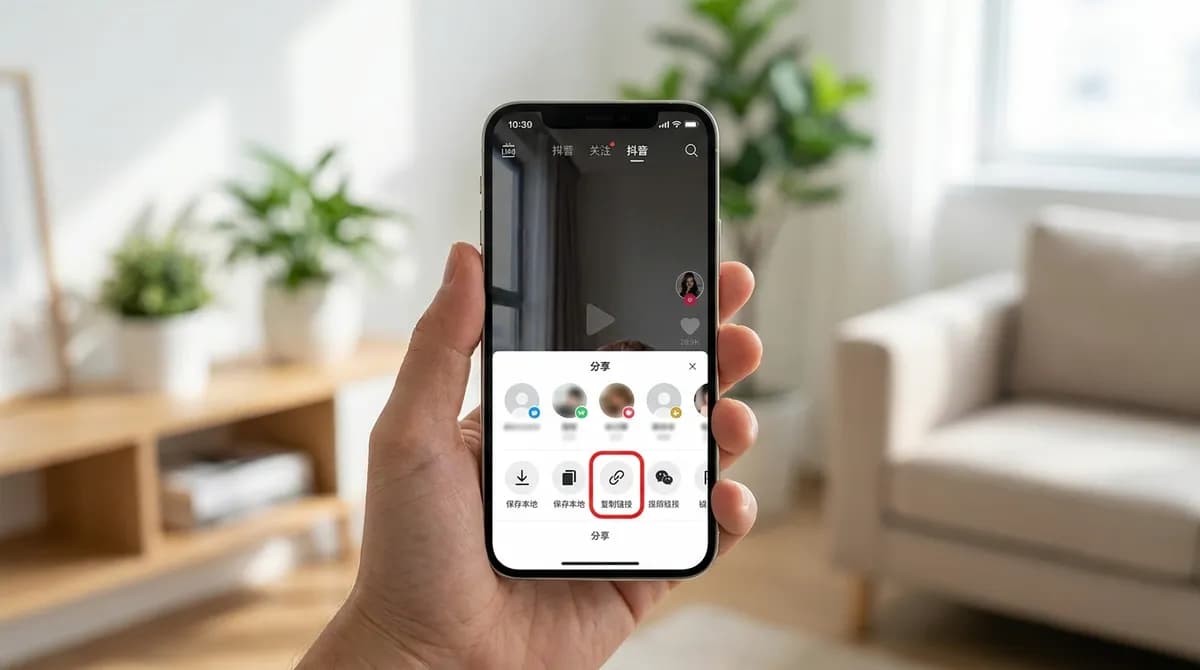
Step 1: Tap 分享 (Share), then 复制链接 (Copy link)
Open the video in the Douyin app and let it play full screen, so the column of buttons on the right is visible: the creator's avatar, the heart, the comments bubble and, below them, the arrow-shaped share button labelled 分享, which means Share. On popular videos the label shows a share count instead, but the button is the same.
Tap it. A panel rises from the bottom with a row of contacts and a row of options. In the row of options, find 复制链接, which means Copy link; you may need to swipe the row sideways to reach it. Tap it and Douyin copies the share text to the clipboard, with a short confirmation in the middle of the screen.
What you have copied is not just a link but a sentence of Chinese, a few emoji, a v.douyin.com link and sometimes a short code. Keep all of it; the next step sorts the link out. One option to avoid in the same panel is 保存本地 (Save to device), which saves the copy with the Douyin logo and the creator's ID drawn over the picture, and only appears when the creator allows it.
If you do not have the app, skip this step. A v.douyin.com link that reached you in a message is already what you need: touch and hold it in the chat and choose Copy. If you watch Douyin on a computer, the address in the browser's address bar, douyin.com/video/ followed by a long number, works too; send it to your phone in a note or a message.
Step 2: Paste the whole text into SnapVidBox in Safari
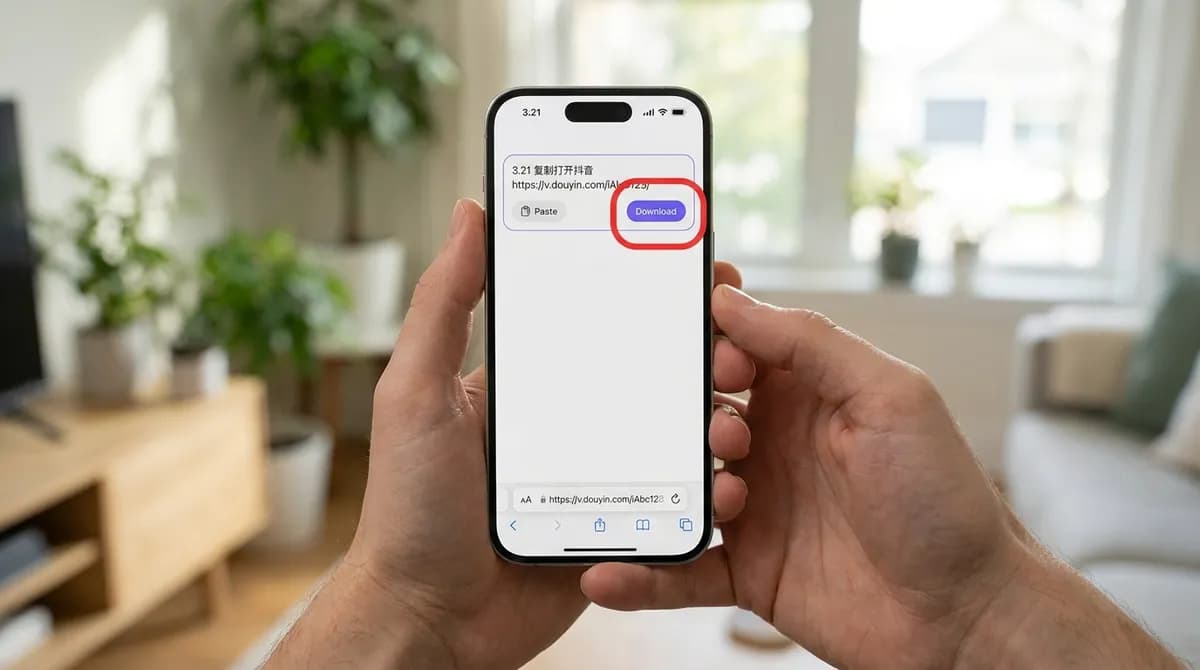
Switch to Safari and open the Douyin video downloader. At the top of the page is an input box with a Paste button. Tap Paste and the share text appears in the box, Chinese characters, emoji and all. The first time a site reads the clipboard, Safari may show a small Paste bubble that you need to tap to confirm. You can also touch and hold inside the box and choose Paste from the menu.
Leave the text as it is and tap the violet Download button. The box finds the v.douyin.com link inside the surrounding words, so there is nothing to trim by hand. You do not choose Douyin from a list, sign in or install anything: the site reads the platform from the link, and there are no ads, pop-ups or countdowns while it works.
The first attempt can come back with an error even when the video is public and the link is right, because Douyin is stricter than most platforms about where a request comes from. Wait about a minute and tap Download again; the retry usually goes through. If it keeps failing, the video is most likely private, deleted, age-restricted or limited to viewers in mainland China.
Step 3: Pick MP4 · 1080p and confirm the download
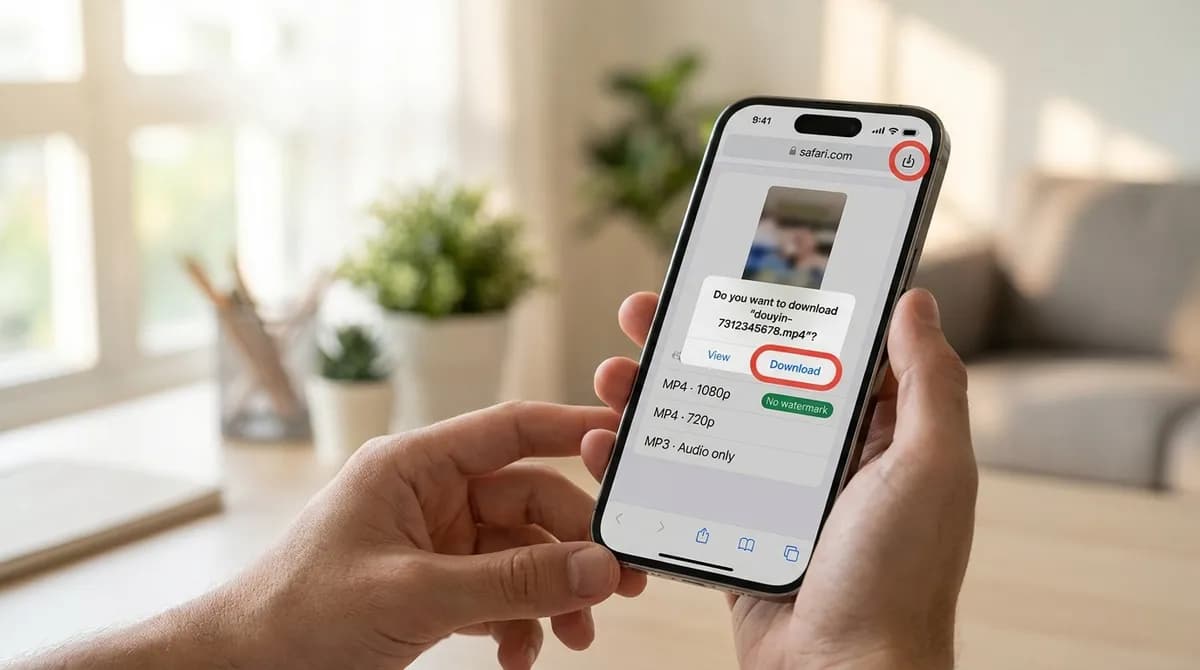
A result card appears with the video's cover and its original title, usually in Chinese, and below it the list of files Douyin serves for that post. The first entry is the MP4 at the highest resolution Douyin has, commonly "MP4 · 1080p", with a "No watermark" badge; tap it. Below it are the same clean video at 720p and 576p, "MP3 · Audio only" and "JPG · Cover image", which are covered further down.
Safari now asks whether you want to download the file and shows its name. For a Douyin video the name is not the Chinese title: it starts with douyin- and the video's long number, because Chinese characters make awkward file names on some systems. Tap Download. A small arrow in a circle appears in the address bar and fills up as the file saves; wait for it to finish before you leave Safari, especially for a long video.
If you want to keep the original title, copy it from the result card before you leave the page and paste it into a note, or rename the file later in Files.
Step 4: Open the video in Files, under Downloads
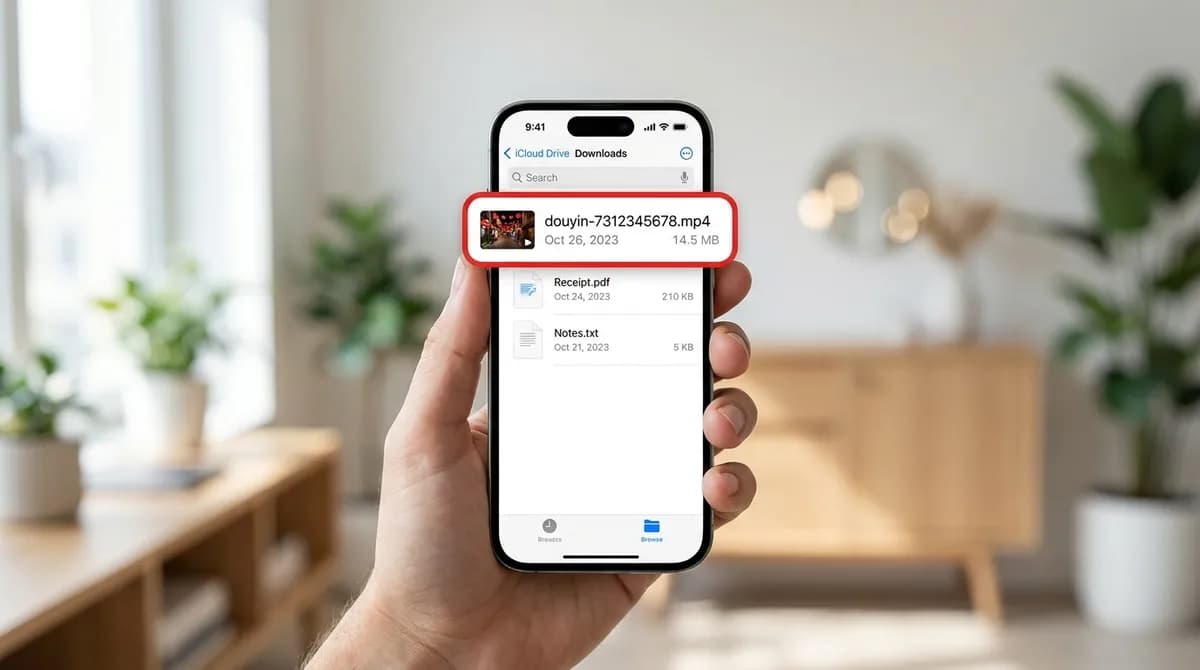
Open the Files app, tap Browse at the bottom, then open iCloud Drive and the Downloads folder. That is where Safari saves files by default. The video is the newest file there, named douyin- and a number; if the folder is crowded, sort it by date so the newest file is at the top.
If it is not there, look in On My iPhone, Downloads. Safari uses that folder when the download location has been changed. The setting is in Settings, Safari, Downloads; on iOS 18 and later Safari is listed under Settings, Apps. A shortcut that works either way: tap the download arrow in Safari's address bar, then tap the magnifying glass next to the file to jump to it in Files.
Step 5: Tap Share, then Save Video
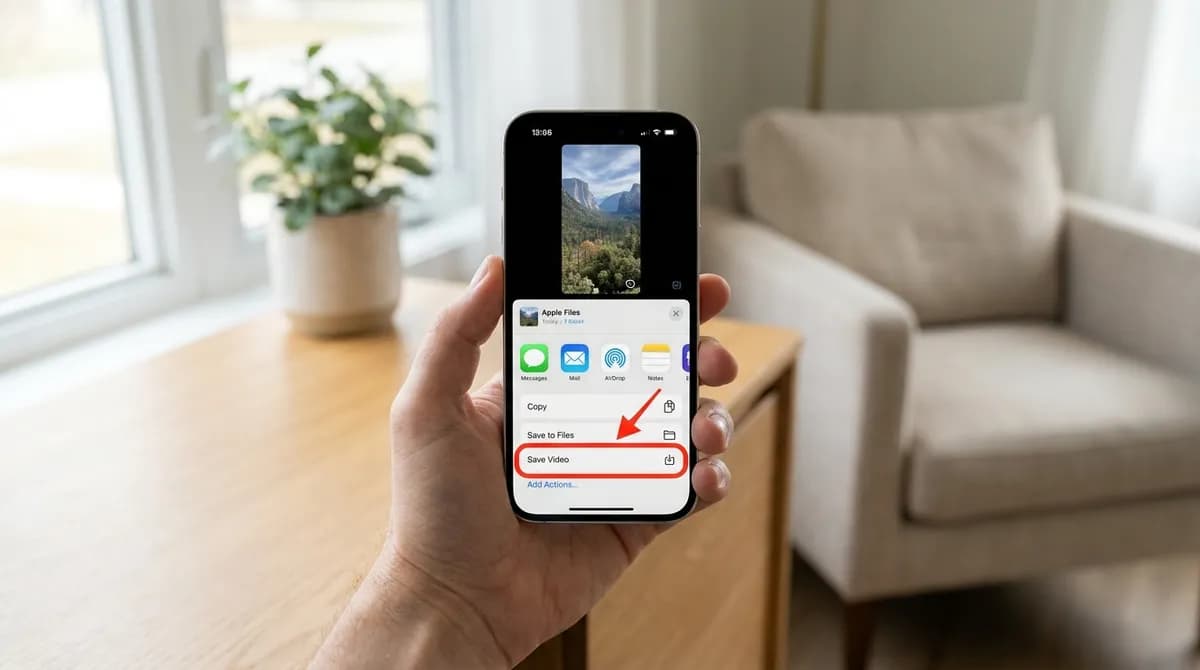
Tap the video in Files to open it. Tap the Share button in the bottom-left corner, the square with an arrow pointing up. The share sheet opens with a row of contacts, a row of apps and a list of actions underneath; scroll down if needed and tap Save Video.
The video is copied into Photos. It sits in your library like any other video, with the full frame as the creator uploaded it, without the Douyin logo or the creator's ID on the picture, so you can trim it, crop it, add it to an album or send it on. If you cannot spot it, open Photos and look under Media Types, Videos.
If the share sheet offers Save Image instead, you downloaded the cover or a photo rather than the video. If it offers neither, see the troubleshooting list below.
Why not use Douyin's own save button?
The share panel's 保存本地 option is quicker when it is there, and if the logo does not bother you it does the job. But the copy it saves has the Douyin logo and the creator's Douyin ID drawn into the picture, moving between corners as the video plays. That gets in the way if you want to edit the clip, use it in a slideshow or watch it without distractions.
The option also only appears when the creator allows it, and only in the app, which many people outside China do not have. The steps above work for any public video from a link alone, because they fetch the clean master Douyin stores alongside the branded copy. Nothing is erased or blurred: it is a different file.
Using Chrome on an iPhone
Chrome works the same way up to the download itself. Paste the share text, tap Download, choose "MP4 · 1080p" and confirm. Chrome also saves into the Files app, but in its own folder: Files, On My iPhone, Chrome. From there the last step is identical: open the video, tap Share, then Save Video.
Changing where Safari saves downloads
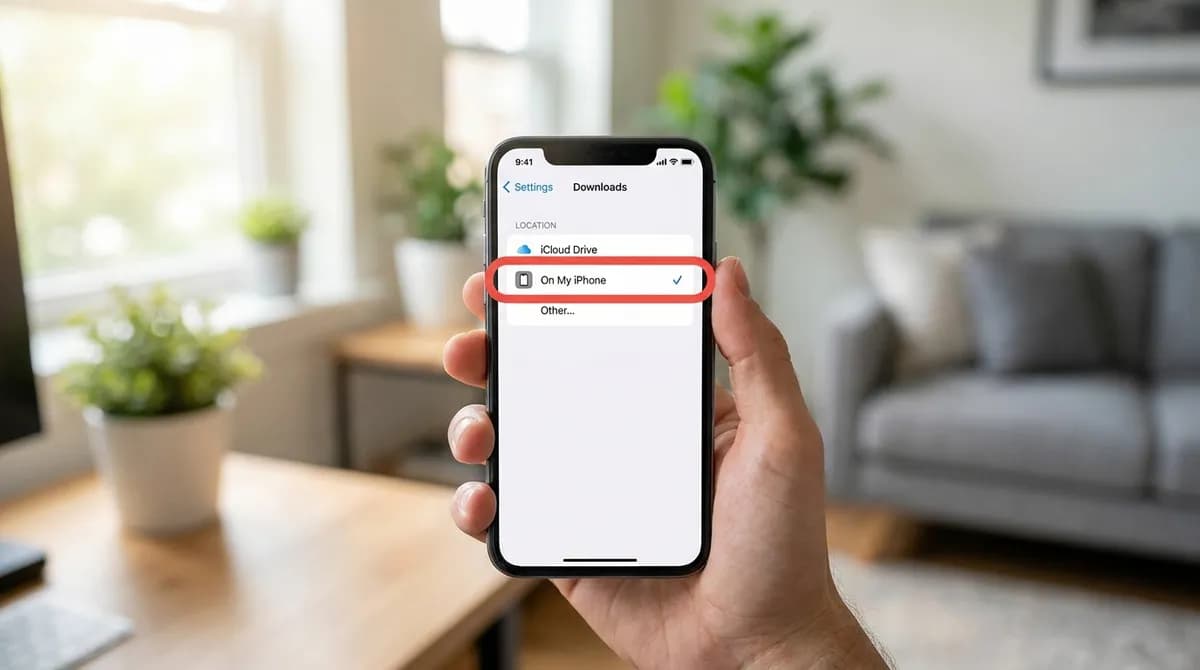
By default Safari saves into iCloud Drive, so each video is uploaded to iCloud and counts against your iCloud storage until you delete it. If you would rather keep downloads on the phone, open Settings, Safari (under Apps on iOS 18 and later), Downloads, and choose On My iPhone. The steps in this guide stay the same; only the folder in step 4 changes.
Saving the photos or the sound instead
Douyin photo posts, the ones you swipe through, come back as one JPG per image, labelled "JPG · Photo 1 of N" and so on, with the background sound beside them. Download the ones you want, open each in Files, tap Share and choose Save Image. The Douyin photo downloader lists these posts on their own.
"MP3 · Audio only" saves just the sound. It stays in Files because Photos does not hold audio; play it from there or move it into a music app. The Douyin to MP3 page lists the MP3 first. Much of the music on Douyin is licensed separately from the video, so keep the file for personal listening.
If Save Video does not appear
The share sheet only offers Save Video for a video file. If it is missing, check these:
- The download has not finished. Wait for the arrow in Safari's address bar to complete, then open the file again.
- You saved the MP3 or the cover image. Go back and pick one of the MP4 options.
- It was a photo post. Those come back as JPG files, and the share sheet offers Save Image instead.
- The iPhone is short of space. Photos needs room for its own copy while it imports the video; free some space and try again.
- The video was still downloading from iCloud. A cloud icon next to the file in Files means it is not on the phone yet; tap it and wait.
Tidying up afterwards
Once the video is in Photos, the copy in Files is a duplicate. Delete it from Downloads to get the space back; the copy in Photos is not affected. If you save Douyin videos regularly, it is worth clearing the Downloads folder every so often, because nothing removes old files from it automatically.
Keep in mind that a clean copy is for you. Watching it offline, or studying an edit or a dance, is ordinary personal use, but reposting it or using it commercially needs the creator's permission. The copyright guide explains where the line sits, and the guide to Douyin links outside China covers the link formats and failures in more depth.
Where each file ends up on an iPhone
The folder depends on the browser and its settings, and the last move depends on the file type:
| What you downloaded | Where it is saved | To get it into Photos |
|---|---|---|
| MP4 · 1080p, 720p or 576p in Safari (default setting) | Files › iCloud Drive › Downloads | Share, Save Video |
| MP4 in Safari, location changed | Files › On My iPhone › Downloads | Share, Save Video |
| MP4 in Chrome | Files › On My iPhone › Chrome | Share, Save Video |
| JPG (cover or a photo from a photo post) | The same Downloads folder | Share, Save Image |
| MP3 · Audio only | The same Downloads folder | Not possible: Photos holds pictures and video only, so play it from Files |
In short
Tap 分享, then 复制链接, paste the whole text into SnapVidBox in Safari, download "MP4 · 1080p", then open it in Files, Downloads and tap Share, Save Video. If the first attempt fails, wait a minute and try again. You end up with the same clean video in your camera roll that the creator uploaded, with no Douyin account, no Chinese phone number and nothing installed.
Frequently asked questions
Do I need the Douyin app on my iPhone?
No. The app is only one way to get the link. A v.douyin.com link someone sent you in a chat, or the douyin.com/video/ address from a computer's browser, works the same way: paste it into the box in Safari and carry on from step 2.
Will the video keep its original quality on my iPhone?
Yes. "MP4 · 1080p" is the highest rendition Douyin stores for the video, the clean master kept alongside the branded copy, with the original sound. Moving it from Files to Photos does not shrink it.
Why is the file not named after the video's title?
Most Douyin titles are in Chinese, and some systems and apps handle those characters badly in file names. The download is named douyin- and the video's number instead. The result card still shows the title, so copy it from there if you want to keep it, or rename the file in Files.
Do I need a VPN or a Chinese phone number?
Neither. SnapVidBox's server fetches the files from Douyin, so your location does not matter for the download, and no Douyin account is involved. The only videos that stay out of reach are private ones and those the creator limited to viewers in mainland China.
Can I save a Douyin photo post to Photos?
Yes. A photo post comes back as one JPG per image. Download each one, open it in Files, tap Share and choose Save Image. The sound of the post is listed as an MP3 beside the pictures.
Does SnapVidBox keep a record of the Douyin links I paste?
No. The link is used to fetch the list of files Douyin serves and is not stored. With no account involved, there is nothing that ties a download to you.
Related guides
How to download a Douyin video on Android without the watermark
Four steps from a v.douyin.com link to a clean MP4 in your Android phone's gallery, in Chrome, with no app to install, no Douyin account and no Chinese phone number.
8 min read
How to download Douyin videos outside China
Download Douyin videos from outside China without the watermark: tap 分享, then 复制链接, paste the whole share text and pick the clean MP4. No account needed.
8 min read
How to save Instagram Reels to your iPhone camera roll
Instagram's own save keeps a Reel inside the app. Five steps to save an Instagram Reel or video to your iPhone camera roll, with Safari and no app to install.
8 min read
How to save a Facebook video or Reel to your iPhone camera roll
Facebook has no download button for most videos, and Safari saves files to Files, not Photos. Five steps from a Facebook link to your iPhone camera roll.
8 min read
Sources
- Douyin User Service Agreement (抖音用户服务协议) — Beijing Douyin Technology
- Where to find downloads on your iPhone or iPad — Apple
- Files basics — Apple
Ready to try it?
Paste any supported link and the platform is detected automatically.
Open the downloader